
Setup for Referrals
Navigate to:
-
Admin > Student Info > Disciplinary Incidents > Modify Referral Locations
-
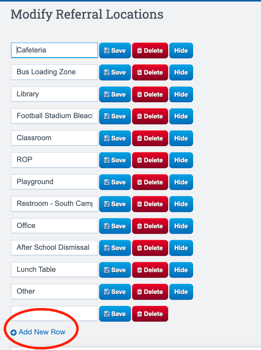
Modify the different referral locations available at your school. Utilize our defaults, or rename, save and or delete.
-
Select Add New Row to add a new location.
Navigate to:
-
Admin > Student Info > Disciplinary Incidents > Modify Referral types, to set up the different kinds of referrals your school offers.
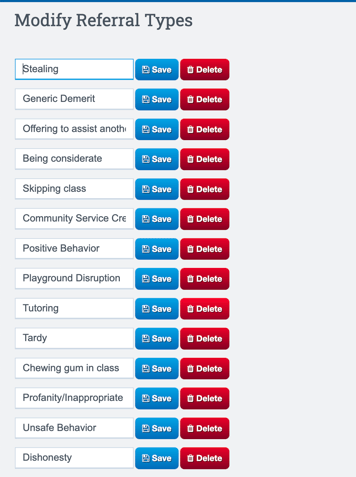
Both of these setup pieces are available on each Students Dashboard when creating referrals. These options created, will be available as dropdowns.
Creating & Managing Referrals
-
Go to the Students Dashboard and select the Discpline Tab
-
Locate the Referrals Sub Tab.
-
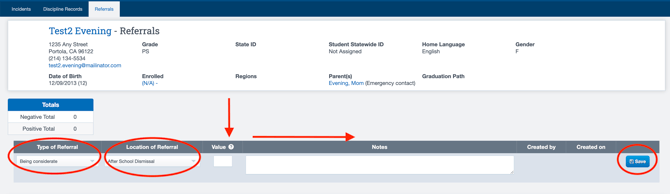
- Select the Type of Referral
- Location of Referral
- Input the Value, Whether it is Positive or Negative (ex. -1, +1)
- Input any notes regarding the Referral
- Select Save.
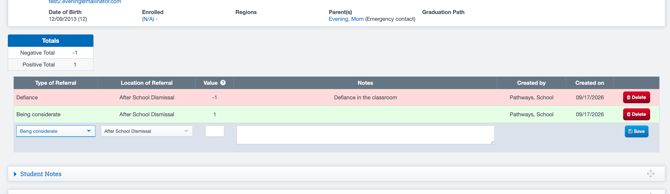
- Observe, now the Totals change to reflect the referral, and view it as a historic record in red for negative, and green for positive.
Reporting
Navigate to Reports > Students > Referral Report

-
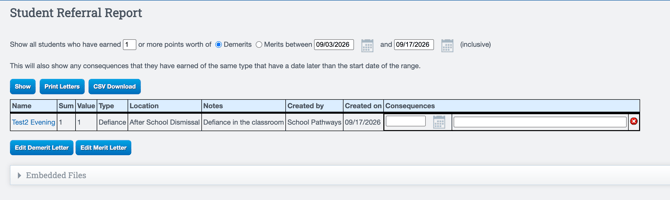
Utilize the Filters, to locate the students by entering how many points were earned, whether they were Demerits (Negative) or Merits (Positive) and enter the Range of dates.
-
Utilize this report to also Create Demerit and Merit Letters. Edit them by Selecting the Edit Demerit or Merit Letter buttons.
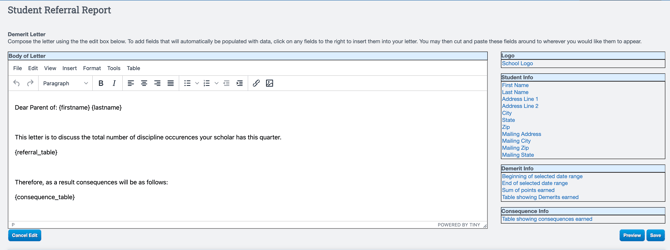
- Once edited, press save, return and select Print Letters to print letters for the students generated.