
Navigation
- Reports > Attendance Anomalies Report
-
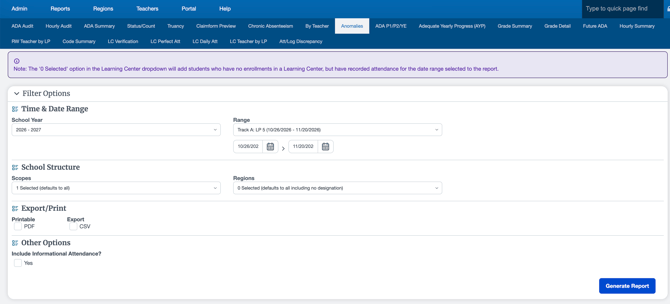
Utilize the filters to locate:
- By School Year
- Range, Tracks and Dates
- Scopes if in District Oversight
- By Learning Centers
- Select PDF or CSV to print and export
- Select to include Informational Attendances if needed.
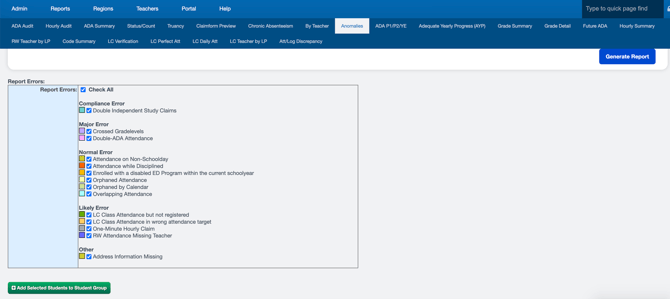
- Below, utilize the Legend Key : Report Errors
- All are checked by default, but if you want to narrow the report by error type, select and deselect the ones necessary.
Compliance Error
- Double Independent Study Claims
Major Error
- Crossed Grade Levels
- Double-ADA Attendance
Normal Error
- Attendance on Non-School Day
- Attendance While Disciplined
- Enrolled with a Disabled ED Program Within the Current School Year
- Orphaned Attendance
- Orphaned by Calendar
- Overlapping Attendance
Likely Error
- LC Class Attendance but Not Registered
- LC Class Attendance in Wrong Attendance Target
- One-Minute Hourly Claim
- RW Attendance Missing Teacher
Other
- Address Information Missing
Once complete, select Generate Report.
Checking for Anomalies
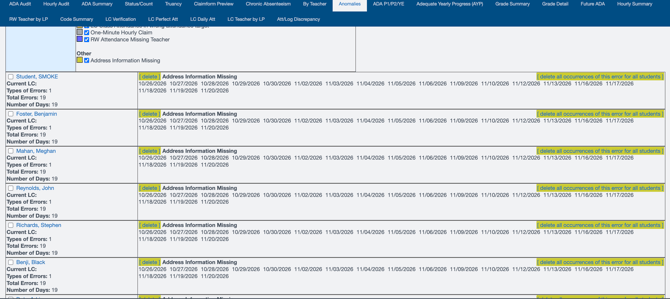
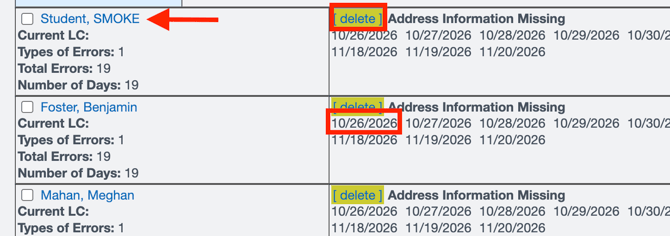
- Select the Delete Button next to the anomaly to get a complete explanation for the reason for the anomaly.
- Selecting the student's name will direct you to their Student Dashboard.
- Click into the Dates to view attendance claims if available.
It is not advisable to delete attendance unless you are absolutely certain that it needs to be deleted. There are many anomalies that can be correct in the system by Attendance Override.
Double Independent Study Claims
Identifies conflicting Independent Study attendance claims recorded on the same day, such as both a present and absent claim.
How to Correct: Review the conflicting claims and delete the incorrect claim directly from the error screen. If necessary, confirm the correct attendance status with the teacher.
Crossed Grade Levels
Identifies days when attendance claims are recorded under multiple grade levels for the same student.
How to Correct: Review the student's enrollment record and verify that all classes are assigned to the correct grade level. Update any incorrect grade-level assignments.
Double-ADA Attendance
Identifies attendance claims that report a student as present in multiple attendance tracks or in both Independent Study and Classroom-Based attendance on the same day.
How to Correct: Review the conflicting attendance records and delete the incorrect claim directly from the error screen.
Attendance on Non-School Day
Identifies attendance recorded on a day designated as a non-school day, such as an emergency closure day.
How to Correct: Review the school's calendar to verify the designated school days. Delete any incorrect attendance claims from the error screen.
Attendance While Disciplined
Identifies attendance claims marked as present when a student's disciplinary record has the "Disallow Attendance" flag enabled.
How to Correct: Review the disciplinary record and attendance claim to determine which is correct. Either remove the attendance claim or uncheck the Disallow Attendance option on the disciplinary record, as appropriate.
Orphaned Attendance
Identifies attendance claims that no longer align with a student's enrollment record due to changes made after attendance was originally recorded.
How to Correct: Compare the attendance date with the student's enrollment dates and correct any discrepancies. An administrator may override or correct the attendance without deleting and reclaiming it. Once corrected, the teacher should re-sign the attendance form.
Orphaned by Calendar
Identifies attendance claims that no longer align with a class calendar due to changes in scheduled instructional days.
How to Correct: Review the class calendar and attendance records to identify the discrepancy. Correct the calendar or remove the incorrect attendance claim as appropriate.
Overlapping Attendance
Identifies attendance claims with overlapping start and end times across multiple classes.
How to Correct: Review the start and end times of the affected classes and adjust any scheduling conflicts to ensure attendance periods do not overlap.
LC Class Attendance but Not Registered
Identifies attendance recorded for a CMS class in which the student is no longer registered or whose class registration has changed.
How to Correct: Review the student's class enrollment records to verify the correct registration. If necessary, consult the teacher to confirm the appropriate class and correct any discrepancies.
LC Class Attendance in Wrong Attendance Target
Identifies CMS class attendance that may be associated with an incorrect attendance target due to class configuration settings.
How to Correct: Review the class configuration under the Attendance tab and verify that the appropriate attendance target is selected.
One-Minute Hourly Claim
Identifies hourly attendance claims recorded for less than one hour. This error applies only to schools using Hourly Attendance.
How to Correct: Review the class schedule and time allocations within the classroom setup. Correct any inaccurate attendance durations.
Address Information Missing
Identifies missing or potentially incorrect student address information, including changes to the student's address or District of Residence.
How to Correct: Navigate to the student's registration record and review the historical address information. Verify that the address and District of Residence are accurate and update any missing or incorrect information.