
Table of Contents
This Attendance Recovery process provides guidance for recording recovered attendance based on current system functionality. A long-term, permanent solution is in progress. For questions or clarification, please contact Customer Support.
Internal Tracking
-
Step 1 (Optional) - Track number of cumulative AR Hours in a new custom field for students on the Student Attendance Page (accessed from student dashboard)
- Navigate to Student Dashboard, and scroll to select the School Year under the Attendance Header

- On this Page, scroll below to the Custom Fields Section, select the pencil icon in the right-hand corner to create a Custom Field

- Create a section by selecting the plus sign next to Custom Field Sessions

- Fill in the Section boxes and click the Save button
- Select the Add field button on the Edit Section page.
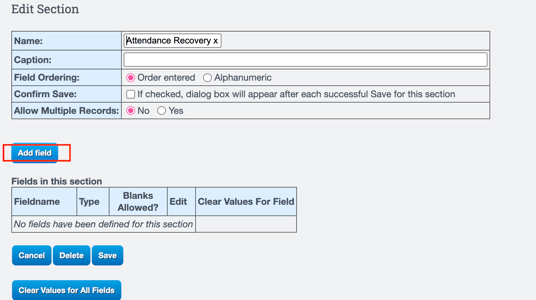
-
Enter
- FieldName EX: Cumulative AR Values
- Type: Number
- Style and select if you would like to see blanks. (Yes)
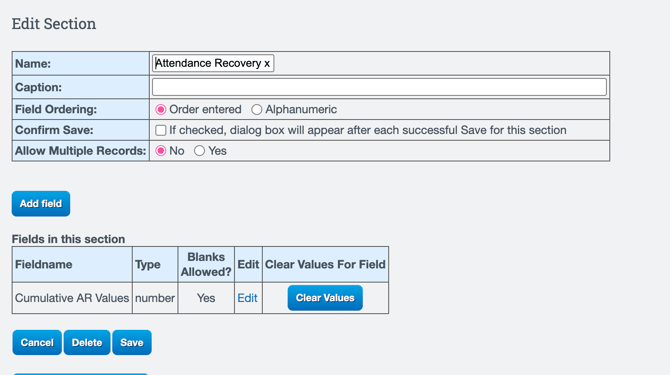
- Select Save.
- On the first page, select the page (green plus) for where you would like the Custom Field to be. In this instance, we would select the Students Attendance (student_attcalendar.php)

- Navigate back to any Students Dashboard and select the Attendance year, and scroll to the custom field to enter.

- Navigate to Student Dashboard, and scroll to select the School Year under the Attendance Header
For more Information visit: Custom Tools: Adding a Custom Field
- Step 2 (Optional) - Run saved C-A-R to pull all students with a value in the custom fields.
- Navigate to Reports > Create-A -Report
- Select starting User: Pre-Built
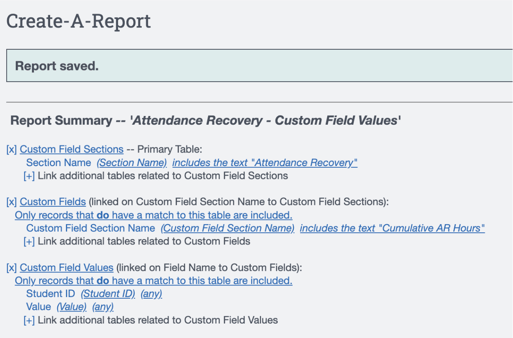
- Select: System Data Pull- Student Custom Field Values
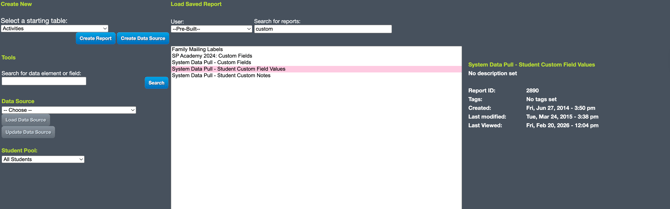
- From this page, you will want to Select Custom Field Section name and change the any to the name of your custom field section Ex: Attendance Recovery. As well as change the custom field to: AR Cumulative Hours
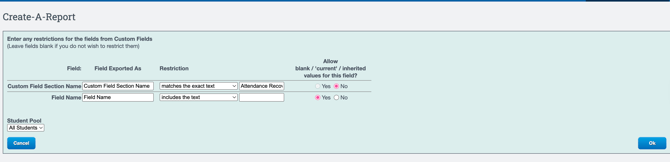
-
- Select Display Results
For More information: Create-A-Report Basics
CALPADS
-
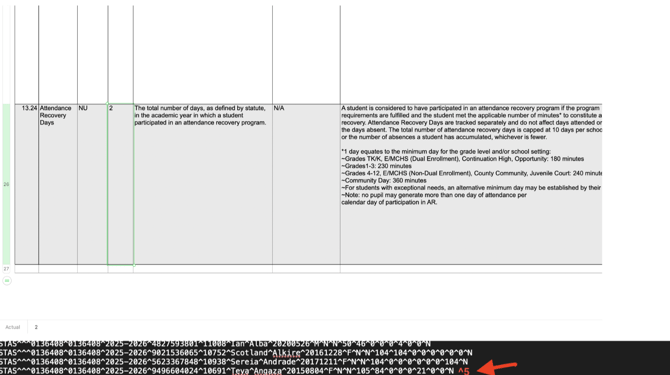
Step 3 - Download the EOY STAS file and manually enter the new “Attendance Recovery Days” total
P1/P2/YE Attendance Report
- Step 4 - Include the ADA generated through AR in the new section of the P1/P2/YE report in the state software as described below:
- 2025–26 Highlights Attendance Recovery ADA: Line B-8 is a new informational reporting line in 2025– 26 (Other Tab (Section B)) for students participating in Attendance Recovery pursuant to EC 46211. ADA generated through an Attendance Recovery program should be included in Section A or in the Attendance Supplement School District, Attendance Basic Aid Choice/Court-Ordered Voluntary Pupil Transfer, and Attendance Basic Aid Open Enrollment entry screens and reported separately on Line B-8
Latest Update: 02/20/2026