
Navigation
-
Teachers > PLS/Student Roster
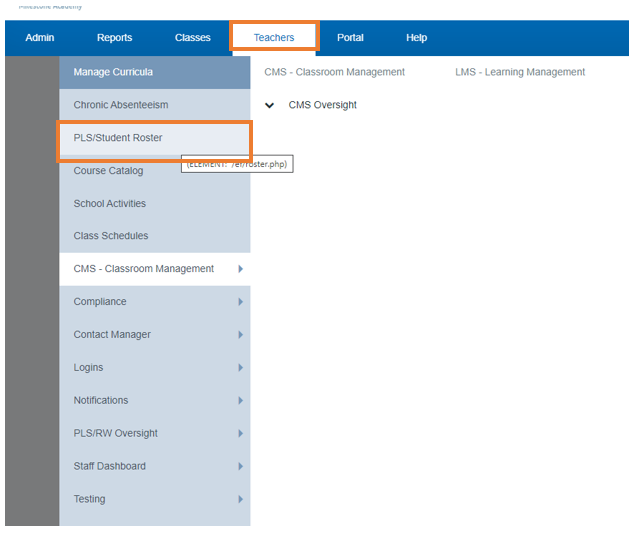
OR from the Dashboard
-
Click Roster
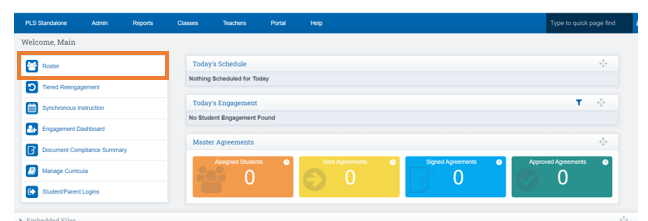
From the PLS Student Roster
-
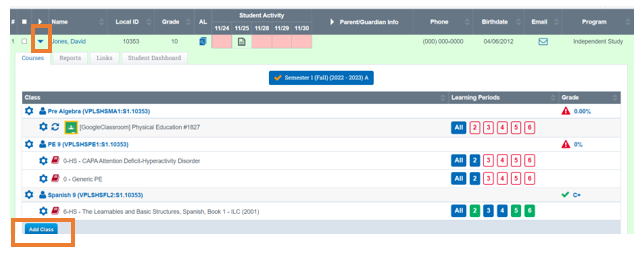
Click the Blue Arrow for the student you want to create a class for
-
Click the Add Class button
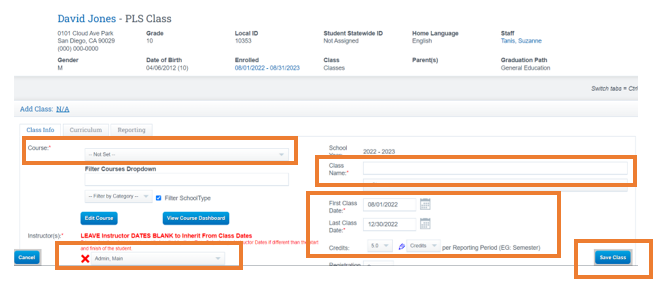
On the next screen you will enter a few pieces of information.
- Use the dropdown to choose a Course.
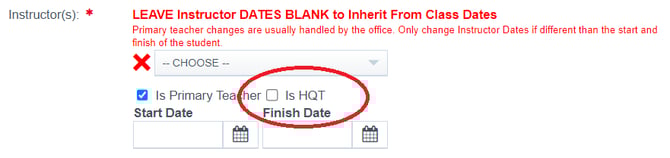
- Make sure that the correct teacher chosen
- Type in the name of the class.
- Make sure the class dates are correct. Is this a semester class or a full year class?
- Make sure the credit values are correct. Is this a semester class or a full year class?
Checking the HQT box will assign the selected teacher as the course instructor and report that HQT in CALPADS, as illustrated in the screenshot below.
Click Save Class
-
Once the class is saved, you will return to the Student Roster where the new class will be listed.
-
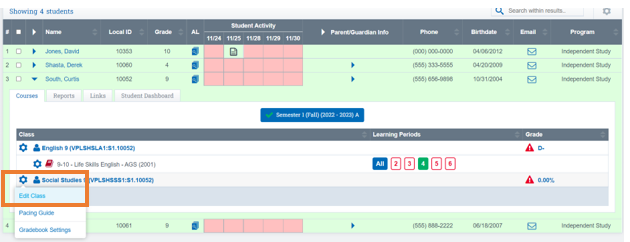
Click the Cogwheel
-
Click Edit Class
-
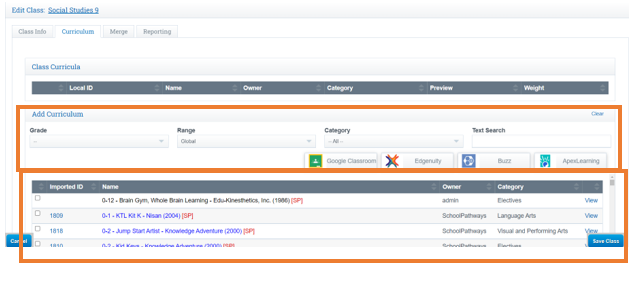
Click on the Curriculum tab
You have two options here:
- Link a Bridge if your school is using a bridge — see the Link a Curricula from Bridge User Guide for step-by-step instructions.
- Import Curricula directly from the School Pathways curricula library.
-
Click Save
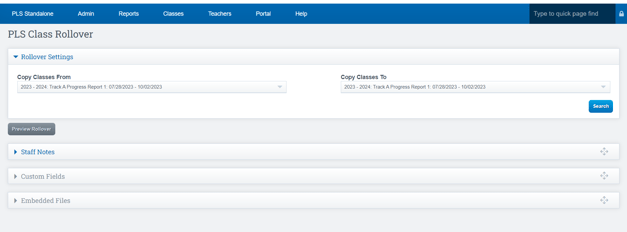
PLS Rollover
-
Click the student you want to rollover class for
-
Scroll to bottom of page click Rollover Class
For step-by-step instructions on importing curricula through a bridge, see the link below.
Import Curricula through a Bridge
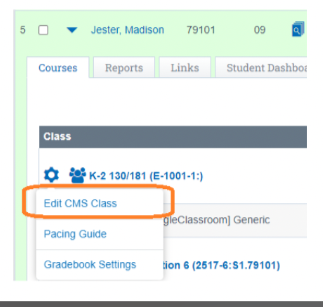
How do you edit a CMS class on the Student Roster page?
-
Click the Cogwheel next to the CMS class
-
Click Edit CMS class
-
Make any necessary updates or changes to the data that your school requires.
-
Click on the Curriculum tab
You have two options here:
-
- Link a Bridge if your school is using a bridge — see the Link a Curricula from Bridge User Guide for step-by-step instructions.
- Import Curricula directly from the School Pathways curricula library.
-
Click Save