Navigation
-
Admin > Student Info > Mass Changes > Enrollment Rollovers & Grade Level Advancement
Pre-work required:
- Exit non-returning students (12th grade you can do in mass below).
- Retain students who need to be retained in their current grade levels.
- Both of these can be done manually via the Students Enrollment Records.
12th Grade Graduations: provides a way to mass exit the 12th-grade graduates
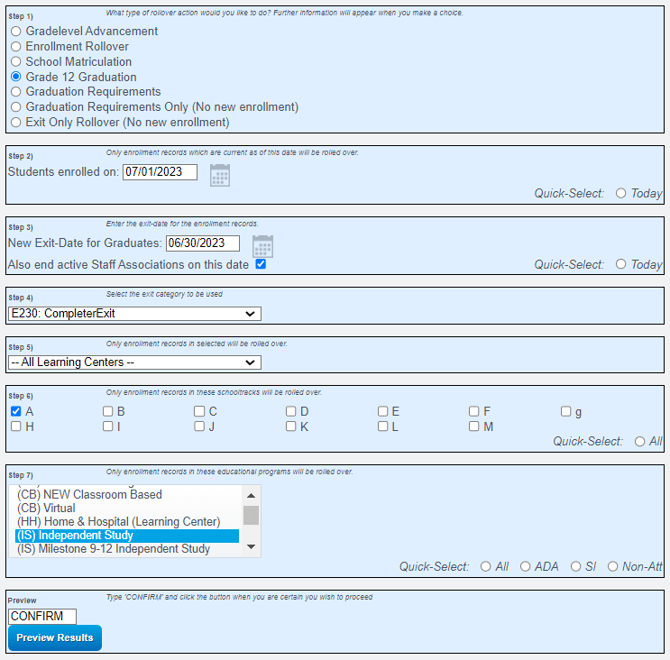
- Select: Grade 12 Graduation
- Students Enrolled on: Enter a date After the last day of current school year
- Ex: Last day of school is 6/30/23. You will enter 7/1/23 to only pick up students who have not yet been exited
- New Exit Date for Graduates: Enter the Last Day of School
- Check the checkbox for ending staff association
- Choose: E230 Exit Code (Completer)
- Choose desired Learning Centers (Common is “All Sites”)
- Select the track(s)
- Choose which Enrollment Programs: IS or CB are most frequently used
- Type “CONFIRM” and click “Preview Results”
Grade Level Advancement:
This process will advance the gradelevel and create the desired next enrollment (whether that be the pre-enroll or the ADA
Most schools roll their students into a pre-enroll for the summer for various reasons (bridges primarily).
Many schools break this process into chunks such as : Gradelevel, Program, Track to ensure they are rolling the students into the correct Enrollments
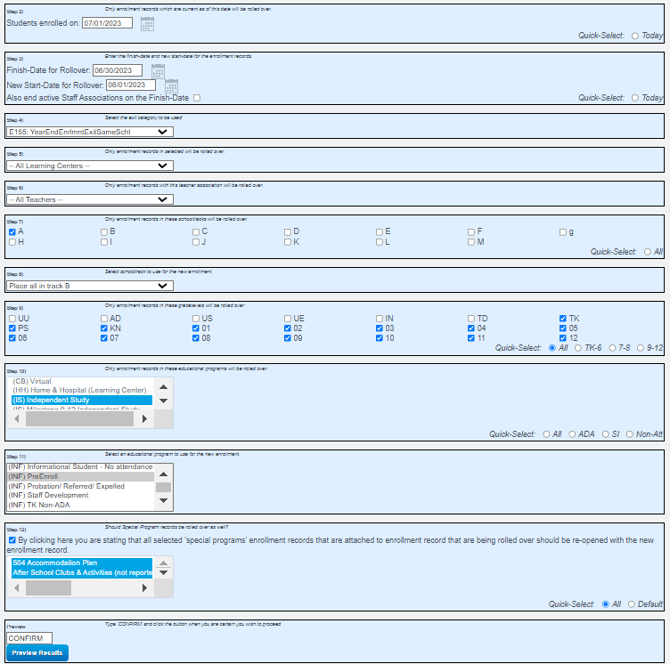
- Select: Grade Level Advancement
- Students Enrolled on: Enter a date After the last day of current school year
- Ex: Last day of school is 6/30/23. You will enter 7/1/23 to only pick up students who have not yet been exited
- Finish Date for Rollover= Last Day of School, New Start Date=see bullets below
- If Rolling to a pre-enroll for summer- New Start Date= 7/1 of the current year
- If rolling enrollments to the next ADA enrollment- New Start Date= first day of the next school year.
- Exit Code: E155 for returning students
- Choose desired Learning Centers (Common is “All Sites”) *See Note Below
- Choose desired teachers (leave as is if not doing the rollover by teacher)
- Select the track(s)
- Continue with previous track (unless rolling to a new track)
- Select the grade levels
- Some schools do the enrollment rollovers in chunks by grade level
- From what program
- To what program. If using a pre-enroll, use that.
- Click the checkbox for programs to be left open- use ctrl to multi select or do “select all”
- Preview and Confirm
It may be helpful to review your Student List using the same rollover filters prior to processing. For example, if you are rolling over Track A students enrolled on 07/01/2025, navigate to Admin > Student Info > Show Student List and apply the same parameters to verify student counts before completing the rollover process.
-
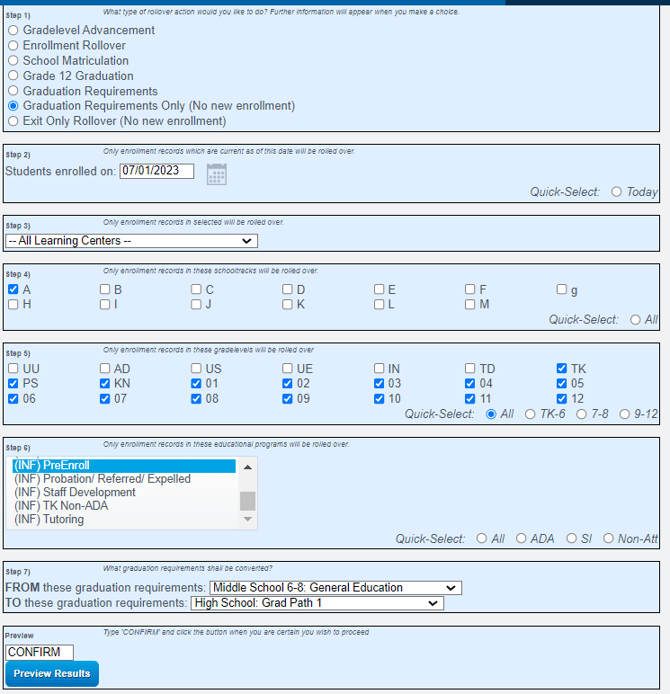
Each school will have different dates than what is shown in the screenshot below, please follow the dates that are appropriate for your schools calendar.
Graduation Requirements (9th graders, Elementary to Middle school)
-
When a Grade-level Advancement is performed, some students will have moved to a new School Type (TK-5 > Middle School, Middle School > High School). For those scenarios, this process can be used to mass update the Graduation Requirements.
- Graduation Requirements Only (No New Enrollment)
- Students Enrolled on: You'll want this to be the start date of the new enrollment that was created (either pre-enroll or ADA)
- Applicable Learning Centers
- Applicable Tracks
- Grade levels: Grade 9 (only for this example)
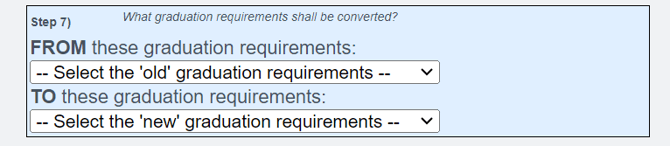
- From Pre-enroll
- From: Choose the Old. TO: Choose the new
- Preview and Confirm
Enrollment Rollovers
-
Admin > Student Info > Mass Changes > Enrollment Rollovers & Grade Level Advancement
-
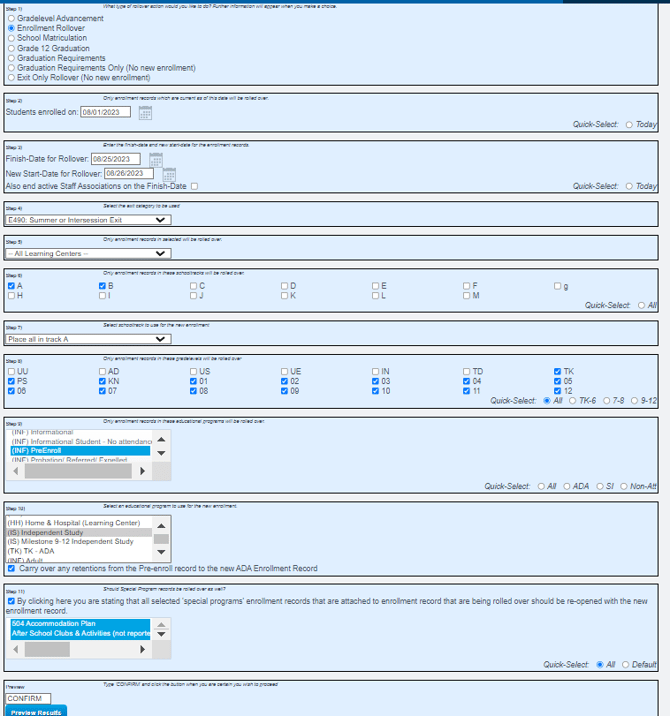
Enrollment Rollover is simply to roll the Enrollment from one to another (Pre-Enroll to ADA/IS/CB). No changes to Gradelevel will be made with this.
If you went straight to ADA in the Grade Level Advancement then skip this section.
*If your school utilizes multiple tracks with different end dates, these steps should be completed separately for each track.
*If students are enrolled in multiple educational programs, you may want to complete these steps separately for each program.
This example is a Pre-Enroll that was created using the Gradelevel Advancement with a date range date of 8/1/23-8/25/23. ADA/IS enrollment begins on 8/26/23
- Choose "Enrollment Rollover "
- Students Enrolled on: Use the start of the pre-enroll 8/1/23 (date if for example only)
- Finish Date=last day of the Pre-enroll
- Example 8/25/23
- Start Date=First day of Next School year
- Example 8/26/23
- E490 Exit Code or something that your school uses. The pre-enroll is not reported to CALPADS so this exit code can be what your school wants to use.
- Applicable Learning Centers
- Applicable Tracks
- Note in this example I chose Track B as that is my Summer School Track
- Applicable Track for new Enrollment
- Note I chose Track A as that is the track for my IS program
- Select applicable Gradelevels
- Choose the originating program
- Example here- I chose "Pre-Enroll"
- Choose new program
- Example here- I chose "Independent Study"
- Click the Checkbox for the programs to roll over
- I highly recommend using the All and then holding ctrl to deselect those you do NOT want to roll over.
- Preview and Confirm