
Table of Contents
- Introduction
- Create a Calendar
- Enroll Students into an Informational Enrollment
- Add Special Enrollment Program
- Enroll students to Special Program
- Create Course Code in Master Course List
- Create an CMS Class
- Leap File for EOY
- Notes/ Updates
Introduction
The Expanded Learning Program (ELOP) is designed to support before-school, after-school, and enrichment programs that extend learning beyond the traditional school day. This program provides schools with the tools needed to manage student participation, attendance, scheduling, and reporting for extended learning opportunities in one centralized location.
- This program used in School Pathways, supports Classroom Based Education and is similar to Attendance Recovery Programs.
- Use this Guide to set up your Expanded Learning Program within School Pathways, so that attendance can be tracked and exported.
Use the Guide and Site below for any CALPADS updates and information regarding the Program(s).
Create a Calendar
- We are going to create a Separate School Track and Calendar for this Program.
Navigate to: Admin > Settings > School Calendars
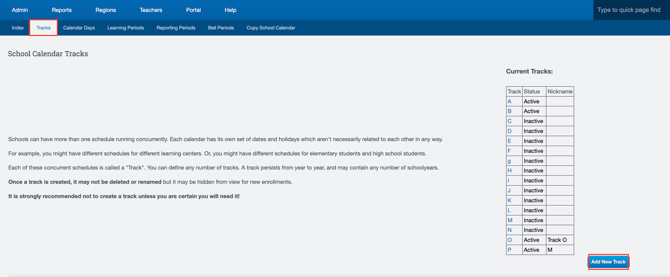
- Use the Column Header, labeled Tracks and then Add New Track to set up an additional track to your existing ones.
- Nickname this Track for visibility, Ex: "ELOP"

- Navigate to the Calendar Days Header next to Tracks.
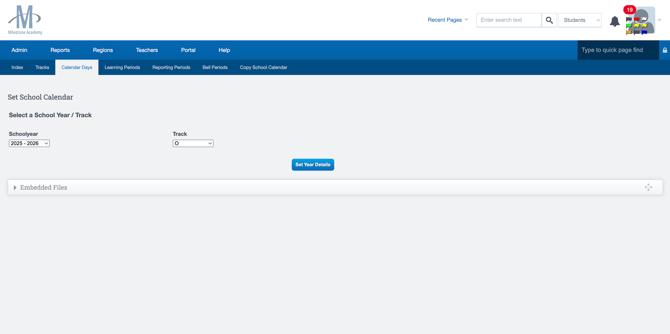
- Select the School Year, and track you just created.

- This Calendar can mimic your primary Calendar.
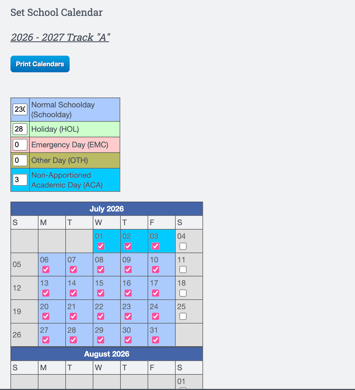
- Next, select Define Dates (Weekends must be enabled in School Policies first)
- Once in Define Dates, select the dates being used. (If this is everyday select every day.)
- It is recommended to use ACA (by tapping the date until it turns turquoise), as ACA days automatically mark any attendance claim as informational, since the entire school day is designated as a Non-ADA day.
-
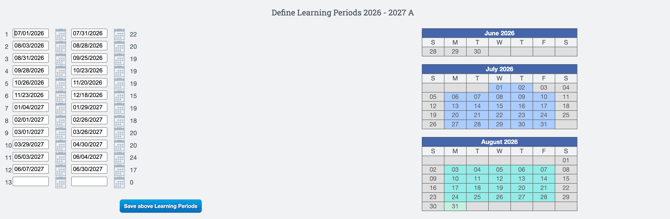
Select the Learning Period tab to define your Learning Periods, even if classroom-based.
Once Finished,
-
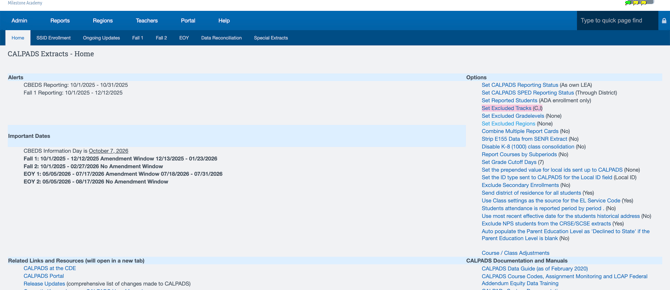
Navigate to Reports > State/Federal > Calpads > Calpads > Set Excluded Tracks
You will need to exclude this newly created Track so the SENR file is not reporting both the student's primary enrollment and second enrollment in the new track.
-
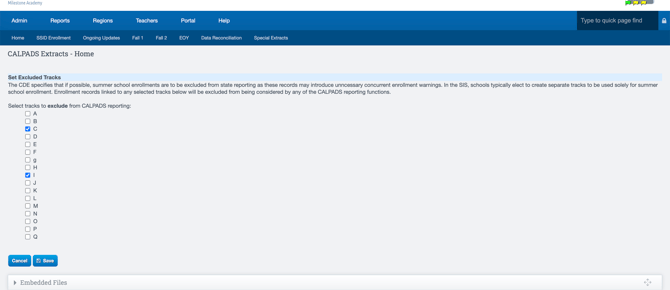
Select the new track, to exclude it from CalPADS.
- Press Save.
To Enable Weekends:
Go to Admin> Settings > Policies > School > #5 & #6 Enable Saturday/Sunday as school days.

Enroll Students into the newly created Informational Enrollment.
-
This newly created Informational enrollment will exist concurrently with their ADA enrollment.
- There are two different options:
- Students can be added to the new enrollment on a student-by-student basis using the Enrollments tab.
- Or you can use the collector to mass enroll kids into this Informational Enrollment grade-level by grade-level.
To load students into the new enrollment via the collector:
-
Navigate to the Student List or Find/Add Student.
-
In the bottom-hand corner, select Collector
-
Make sure you are filtering by grade-level
-
Select the students, then select add to collection.
-
From this collection, select change
-
Navigate to a Student's enrollments tab
-
Select the Available collection actions on this page as "Create new enrollment records."
-
Select Ok

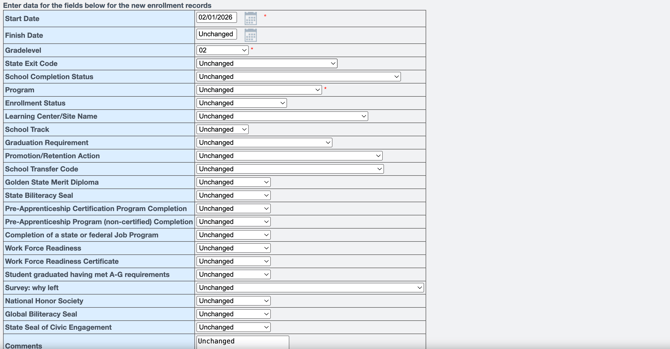
- Fill in the information required (red asterisk)
- Select the grade-level for the collection (This is why we are filtering grade-level by grade level for our collections)
-
After filling in the correct information, select preview changes.
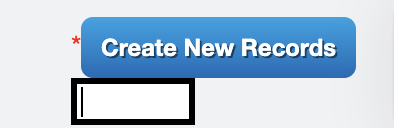
- After reviewing the record, type confirm to add the new record
- Repeat this process grade-level by grade-level to Batch add your students into this newly created Informational enrollment that will exist alongside their ADA enrollment.
Add Special Enrollment Program
Navigate to: Admin > Settings > Special Enrollment Program Options
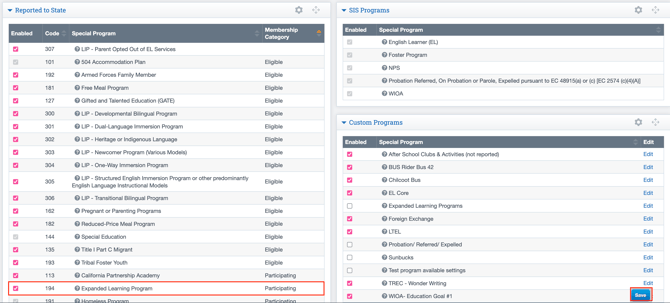
- Enable the Expanded Learning Program option as Reported to State and save.
Enroll Students to Special Program
Enroll Students into the Special Program into their ADA enrollment NOT the newly created Informational enrollment.
Navigate to: Student Dashboard > Select Column Header Special Programs/ Accommodations
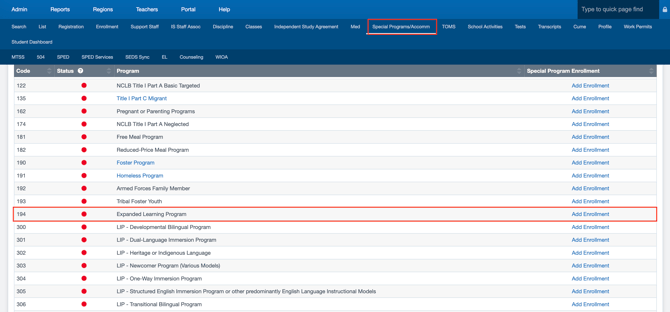
- Find Code 194 - Expanded Learning Program > Add Enrollment.
- Add this Special Enrollment Program to the student.

Keep in mind, this enrollment will Co-Exist with their current regular enrollment.
Create Course Code in Master Course List
Navigate to: Admin > Transcripts > Master Course List
-
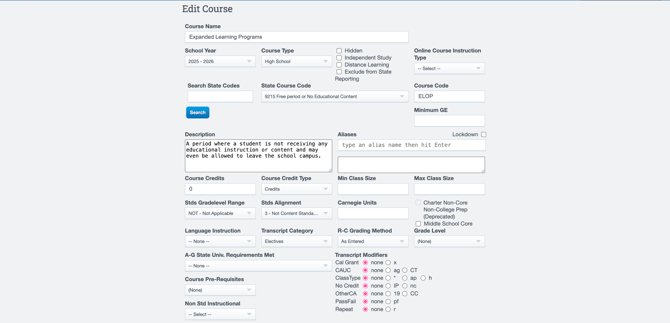
Select Create new course
- Name this course Expanded Learning Program.
- Select the:
- School Year
- Course type
- Select the State Course Code (this course be excluded from state reporting)
- Insert 0 course credits
- STDS Gradelevel Range - NOT Applicable
- STDS Alignment : 3 Not Content Standards Aligned or Applicable
- Transcript Category: Elective
- One finished, press save.
Create CMS Class Sections
Go to: Learning Center/ Region > List Classes > Add Class (Plus Sign)
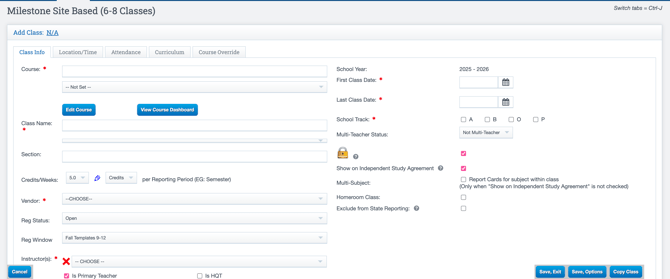
- Set the Course as ELOP Expanded Learning Programs and connect the Course Code created previously.
- There will be Multiple Sections, if taught by multiple teachers on multiple days, create a Section Number if needed. (If needed can Mass Copy the class to create multiple sections).
- Select the Instructor teaching this section.
- Select the newly Made School Track.
- Select the First Class Date (or first day of ELOP) and Last.
Attendance Tab
- Select Informational as Attendance of Record.

- Check on Expanded Learning Program.
- Save, Exit
- View this Guide to Enroll/ Register Students into this Course/ Program: CMS- Mass Add/Register Students to a Class
*****If ELOP attendance has already been tracked in a class section tied to your existing ADA school track, update the class section to the new track. Once updated, you MUST override the associated attendance claims in the Attendance Claim Override report.
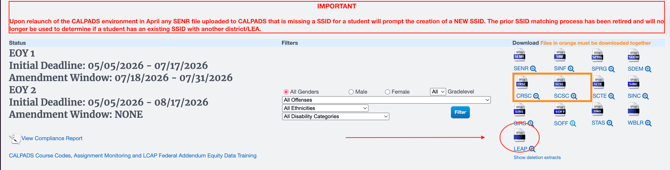
Leap File for EOY
Navigate to: Reports > State/Federal > CalPads > EOY > LEAP File
Notes/ Updates
12/08/2025- The creation of a LEAP File for EOY is in progress.
05/05/2026- LEAP File for EOY available