The AI Transcript Loader is designed to streamline the transcript entry process by using AI to read and interpret transcript information, reducing the amount of manual data entry required when adding a student’s academic history into School Pathways.
Currently in Beta, this tool assists users with identifying and transferring transcript data into the SIS more efficiently. Because this feature uses AI, all information should be reviewed for accuracy before completing the transcript entry process.
If you are interested in joining, please contact a School Pathways Representative:
-
Customerservice@schoolpathways.com
-
+18662006936
A Note on Privacy and Data Handling
Documents are processed under zero-retention, no-training AI policies, encrypted in transit, and never stored by the AI provider. Temporary processing copies are removed within 24 hours. Do not configure highly confidential documents, such as IEPs or 504 plans, for AI checks.
Navigation
This tool is located right on screen within the Students Transcript page.
-
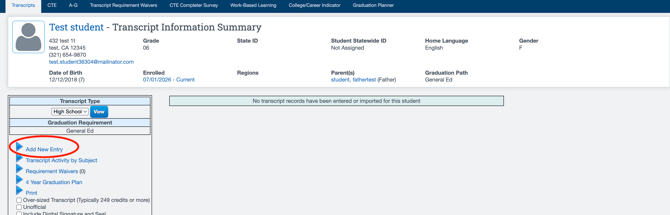
Navigate to a Student's Dashboard > Transcript Tab
-
Select Add new Entry on the left-hand side
-
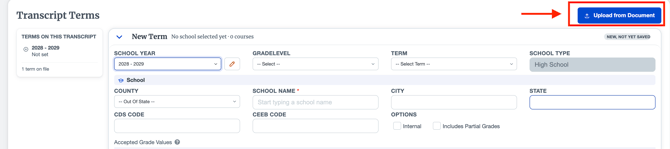
Select the new 'Upload Document' icon on the right.
-
Select and drop your document/ transcript you want to input
- Select Analyze.
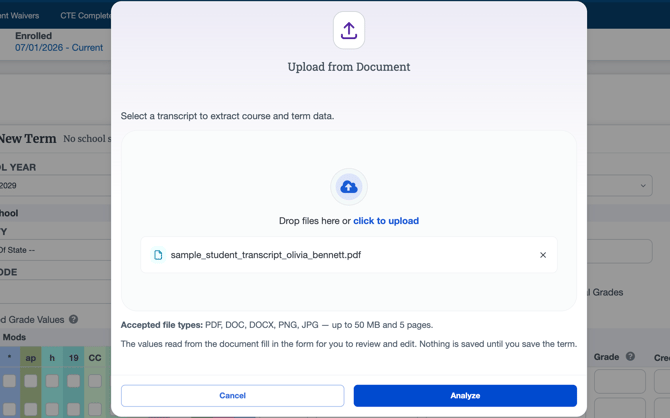
The tool will process shortly; wait for it to generate and analyze.
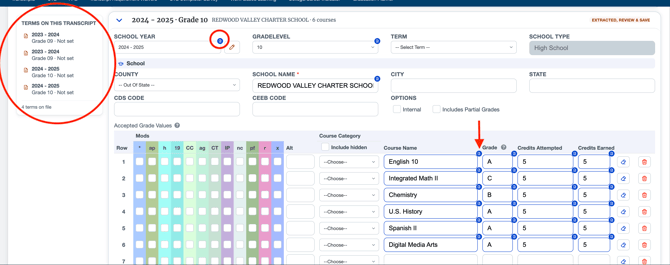
- Once generated, observe the fields with a blue icon in the right-hand corner of the fields. These are the fields the loader was able to pull and input.
- The terms will populate to the left of the transcript entry.
- Fill in the remaining fields.
Important: Remove the existing school name and re-enter the school. This allows the CDS code to auto-populate correctly, which is important for CCGI reporting. An upcoming enhancement will improve this process.
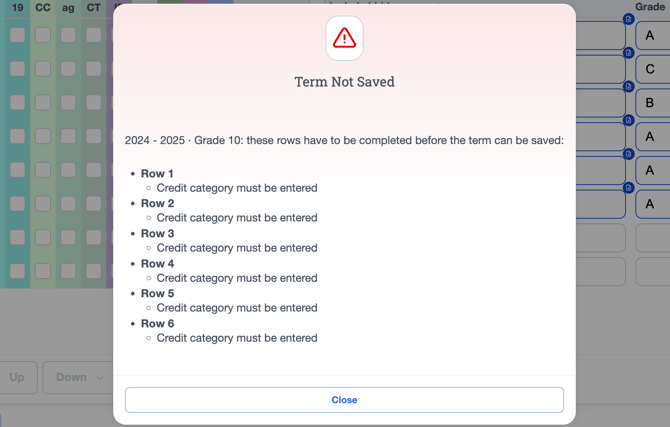
- Please ensure to manually input the Modifiers, the Course Category and the A-G College Requirement as well, these will not auto-populate.
- If all required fields are not completed, the system will perform a validation check and will not allow the term to be saved until the missing information is entered.
- Once complete, select Save Term at the bottom of your entry.
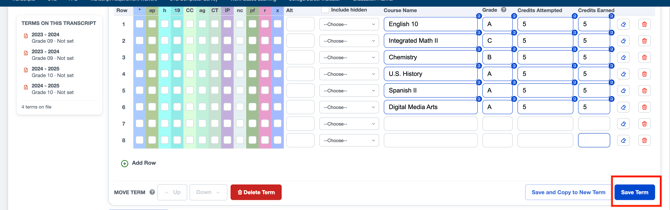
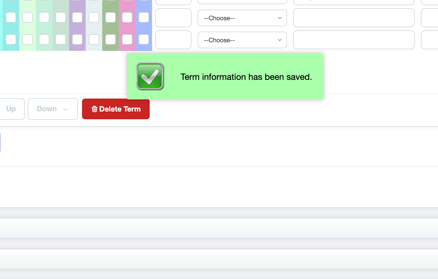
- The term will not close automatically after saving. An enhancement to improve this behavior is currently being developed.
- Once saved, you will receive a “Term Information Has Been Saved” notification. You can then move on to the next term entry.
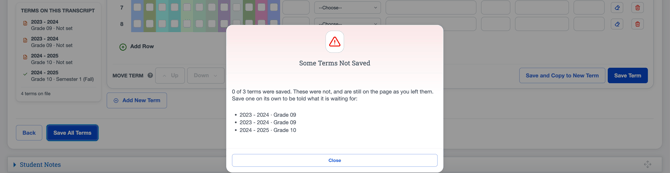
- Each term is saved individually, so once all terms have been saved, you do not need to save the entire page separately.
- There is still a "Save All Terms" button at the bottom.
- It will notify you again if terms have already been saved and perform another validation check for items that may be missing.