
The Reg Online AI Compliance Tool is designed to streamline the application review process by using AI to analyze documents uploaded by families and identify potential discrepancies or compliance concerns. Currently in Phase One for our Beta users, the tool can review documents such as age verification, proof of residence, immunization records, and parent/guardian identification, comparing key information against what was entered on the student’s application.
Results are displayed within the Applicant Summary, allowing staff to quickly review matches, mismatches, warnings, and other items that may need attention. The AI Compliance Tool is intended to assist with the review process, not replace it, staff should continue to review documentation and make the final determination when discrepancies are identified.
If you are interested in joining the Beta program, please contact a School Pathways Representative:
- Customerservice@schoolpathways.com
- +18662006936
A Note on Privacy and Data Handling
Documents are processed under zero-retention, no-training AI policies, encrypted in transit, and never stored by the AI provider. Temporary processing copies are removed within 24 hours. Do not configure highly confidential documents, such as IEPs or 504 plans, for AI checks.
Table of Contents
Setup
Within your Reg Online setup, navigate to the Setup Documents page and ensure each document is matched to the appropriate Compliance Document type.
-
Navigate to Admin > Reg Online > Set-up Documents or Admin Page > Setup Documents
-
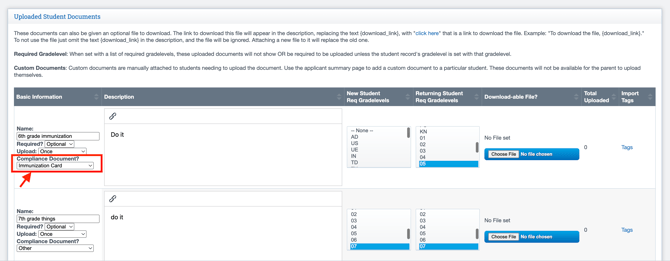
Scroll to your Uploaded Student Documents section.
- You will notice an additional line item under the Basic Information Column, called Compliance Document.
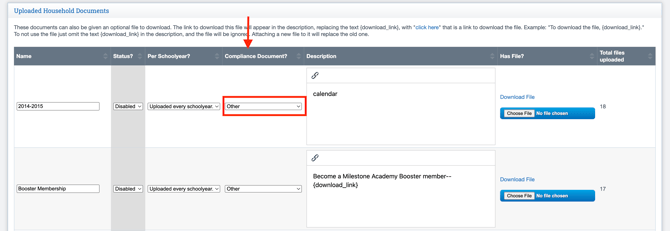
- Under the Uploaded Household Documents, this was created as a new, and separate column, labeled 'Compliance Document '.
- For each document, you have set-up, select the correct Compliance Document option.
- The list as follows,
- Other
- Proof of Residence
- Age Verification
- Parent Guardian Identification
- Immunization card
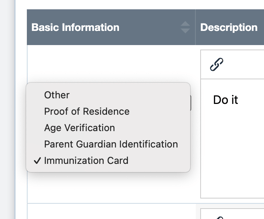
- This field helps guide the AI Compliance Tool by identifying what it should look for when scanning the document. Select the option that best applies to the document being reviewed. If none of the available options apply, select Other.
- Save all Documents in the bottom right-hand corner, once complete.
What Does the tool Review?
The AI Compliance Tool reviews different information based on the Compliance Document type selected during setup. The analysis cross-references information from the uploaded document with information provided within the student's application to identify potential matches, discrepancies, or concerns.
- Age Verification: Reviews information such as the student's first, middle, and last name, date of birth, birth city/state, and parent/guardian information. The tool may also review elements of the document to determine whether it appears to be a valid age verification document.
- Proof of Residence: Reviews information such as the document date, service address, and the individual listed on the document. The tool may also identify differences between the service address and information provided within the application.
- Immunization Card: Reviews the document type and student information, including first name, last name, and date of birth, to confirm the document pertains to the student.
- Parent/Guardian Identification: Reviews parent/guardian information when identification is required as part of the registration process.
The tool may also flag documents that appear invalid or are unable to be read by the AI, bringing them to the reviewer’s attention for further review.
Using the AI Compliance Tool
Navigation
-
Navigate to Admin > Reg Online.
There are two ways to access the Applicant Summary:
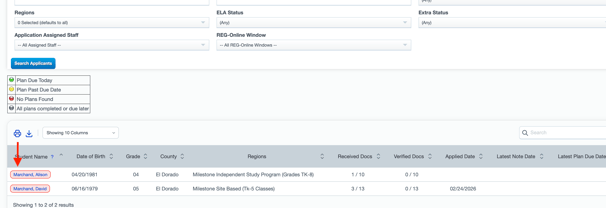
- From the List of Households, locate the appropriate household and open the Applicant Summary for the student.
- Navigate to Application Review and select the student you would like to review. This will bring you to the same Applicant Summary page.

Reviewing the AI Analysis
The AI analysis runs automatically when a family uploads a document through Reg Online. By the time the application is ready for staff review, the analysis will already be available within the Applicant Summary.
-
Scroll to the Current Documents, and navigate to the Uploaded Documents or Household Documents section of the Applicant Summary.
-
You will notice a new the Alerts column under both Household Documents and Uploaded Documents sections that will automatically display the results of the AI analysis for each applicable compliance document.


-
The analysis will identify whether the information reviewed matches or if a potential mismatch or discrepancy was found.
-
For example, the tool may identify differences between the student's application and an uploaded document involving the student's name, date of birth, address, or other information being reviewed.
- The tool may also flag a document if it is not legible or the AI is unable to accurately read the document.
-
A mismatch does not automatically mean the document is invalid or that the application cannot move forward. The AI Compliance Tool is intended to bring potential discrepancies to your attention while allowing staff to make the final determination.
Reviewing Alerts
-
Hover over an Alert to view additional information about what the AI identified during its analysis.
-
Select the View icon (the eye) to open the application and review the uploaded document alongside the information provided by the family. The system will highlight the areas associated with the alert, allowing you to compare the information and determine whether any action is needed.

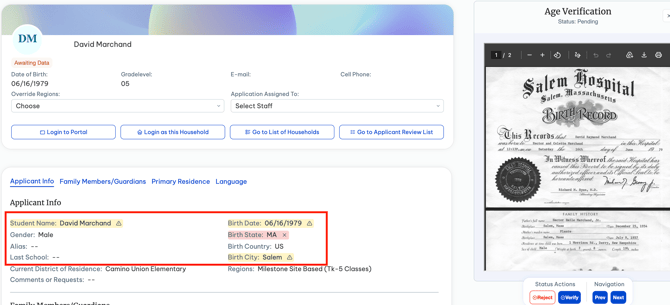
- Additionally, If you hover over the warning sign, a new pop-up will appear, showing
- Whether or not there is an existing SIS Record
- The field on the Form & the field on the Document itself
- Any Alerts/ Warnings
- A Confidence Score
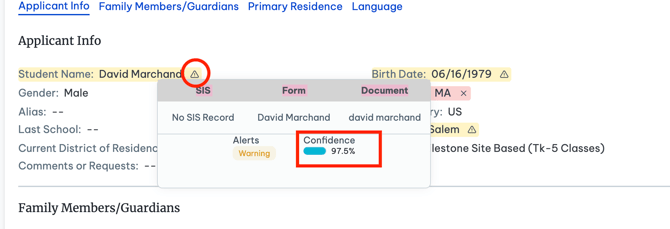
Confidence Score
The Confidence Score indicates the AI tool's level of confidence in its ability to accurately read the document and complete the analysis.
Rerunning the Analysis
If an analysis was unable to run or you would like the document to be reviewed again, select the applicable document(s) and rerun the document analysis.
-
To Rerun, select Next to the Document on the left-hand side.
-
A box will pop-up at the bottom with a Re-run analyze button.
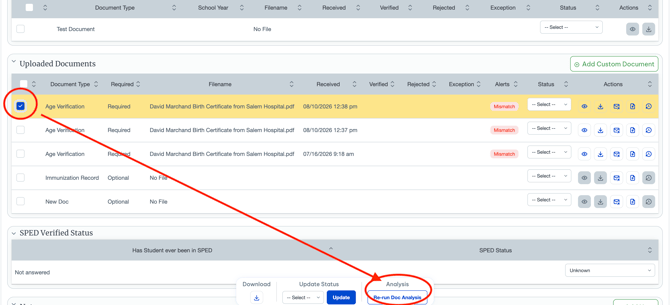
- Select Re-run Doc Analysis.
Important: The AI Compliance analysis is designed to assist with the review process and will not prevent a reviewer or registrar from proceeding with importing the student. Any identified alerts or discrepancies can be reviewed, but they will not block the import process.
For More information on utilizing the Applicant Summary page, visit: NEW! Applicant Summary Page