
Table of Contents
Navigation
Although the Applicant Summary Page has received a refreshed design, it can still be accessed through the same navigation pathways as before. No changes have been made to how users navigate to the page.
-
Go to: Student Dashboard > Scroll down to Reg Online > Magnifying Glass (View Application)
or
-
Admin > Reg Online > Admin Page
-
Click Show All (This will bring you to the Households page)

-
Scroll to the Household with the Student you would like to review


The Applicant Summary page can also be accessed through the Application Review page.
-
Admin > Reg Online > Application Review
- Click into the student you would like to review.
Overview of Summary Page
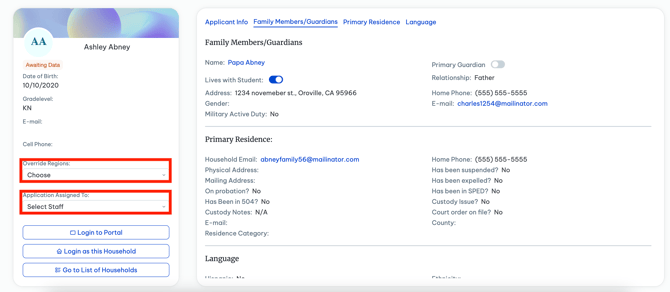
Key information to review:
-
Assign Applicant to a Staff member & See what data is awaiting
-
Override The School or Learning Center (Regions) If needed
This information has been moved to the left-hand side, along with the student's basic Information, such as:
-
- First and Last name
- Status of their application
- Gradelevel
- Email address
- Cell Phone
More detailed Applicant Information, Family Member details, Primary Residence information, and Language information can now be found within the right-hand panel of the Applicant Summary Page.
As you scroll through the information in this panel, the corresponding tabs at the top will automatically update to reflect the section currently being viewed. Users may also select a tab directly to quickly navigate to a specific information section.
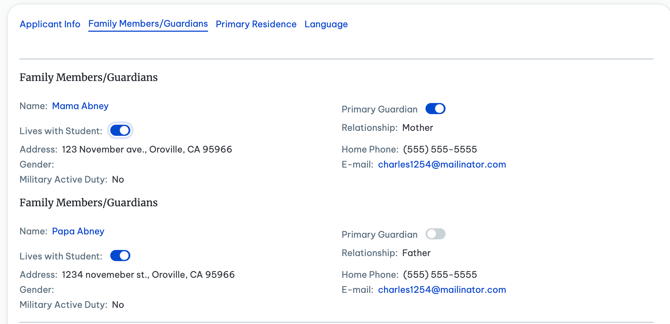
- You can also toggle the Lives with Student and Primary Guardian buttons.
- From here scroll down to view Document Information.
Current Documents
The Documents section has received a complete refresh, making it easier than ever to review applicant-submitted documents.
Users can now preview documents directly within the Applicant Summary Page, eliminating the need to download files simply to view their contents. This streamlined experience allows for faster document review while still providing the option to download documents when needed.
-
The Current Documents are still set up into six different sections, in the same order that applicants will view their documents.
- Household Documents
- Required Signed Documents
- Uploaded Documents
- SPED Verified Status
- Notes
- Plans
- Student Forms ( Forms & Surveys Add- On)
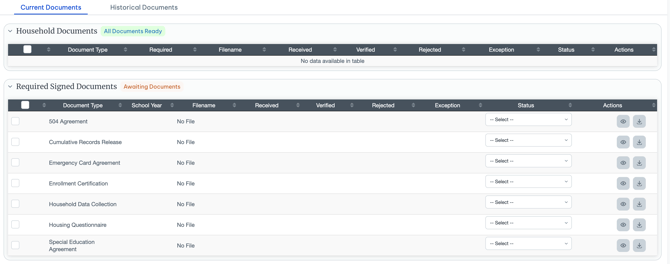
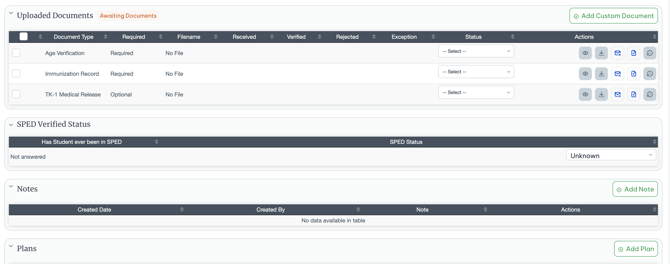
- You will notice all three documents still have the same Status Options, including
- Set As Verified
- Set As Rejected
- Set As Exception
- Clear Status
- The dates will still populate once the status has been saved under the respective column.
- You will also notice the actions column for the Household Documents and Required Sign documents consist of the newly added preview button and a download button.
- For the Uploaded documents, as before you will notice a few more actions, including the preview and download, along with the Send Reminder, Upload New Document and Replace Active Document.
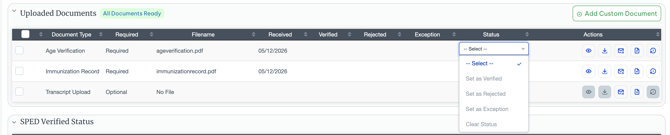
- Select 'Send Reminder' to populate the Send Reminder to Household Button
- This will send a reminder to the household about uploading this document.
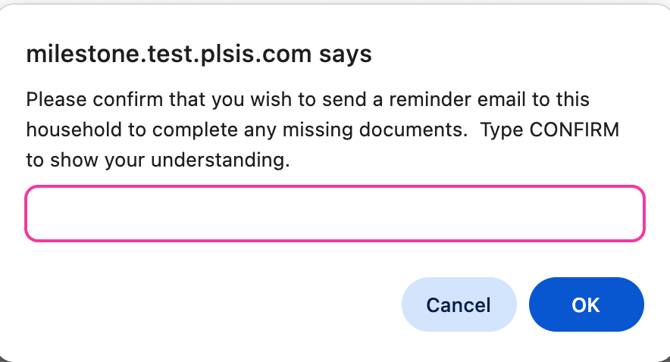
-
- It will ask you if you wish to send the reminder, and to type CONFIRM
- 'Upload New Document' will allow you to manually upload this document Via Pathways.
- 'Replace Active Document' allows you to manually upload and replace the document.
Notes & Plans & SPED Status
The Notes & Plans section remains available within the Applicant Summary Page and continues to function as before. Users can create and review applicant-related notes and plans directly from this area. Additionally, the SPED Verified question is still available, allowing users to view and manage this information as part of the applicant review process.
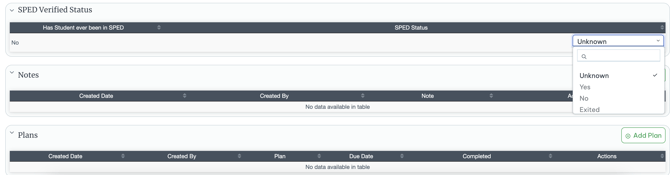
- Verify the SPED Status on the right.
- Add Notes by selecting the Add Note and Add a Plan by selecting the Add Plan button.
Student Forms
-
Are Forms & Surveys that have been included in the Reg-Online Application.
-
This is a Paid-Add-on.

- This allows you to Preview the results of the Survey submitted by this Applicant.
Historical Documents
Historical Documents allow you to view documents submitted in past years of their Registration.
- Select the tab next to Current Documents
- Here you will see the same sections:
- Historical Household
- Historical Signed Documents
- Historical Uploaded Documents
- SPED Verified Status
- Notes
- Plans
- Student Forms ( Forms & Surveys Add-On)
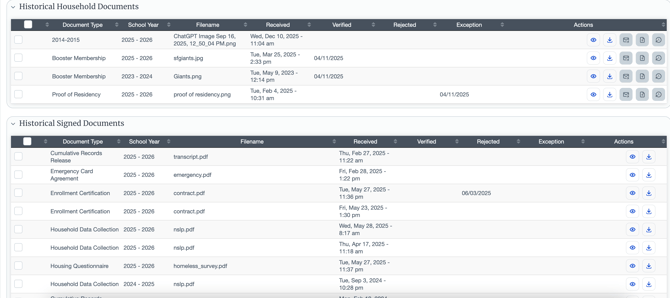
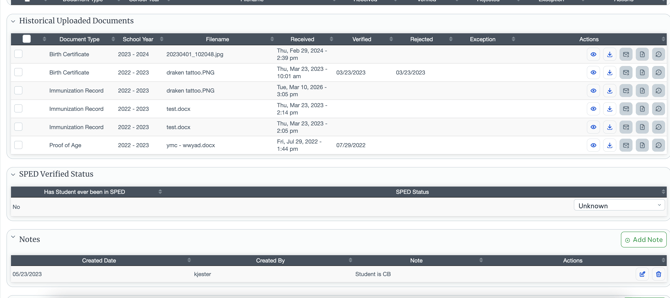
- You will be able to preview and download these documents as well, and view the historical dates of statuses.
Next Steps
Once the Applicant Summary Page has been reviewed and all information has been verified, you can proceed to the next stage of the registration process by approving the application and preparing the student for import.
For detailed instructions on importing students, please review the following guide: