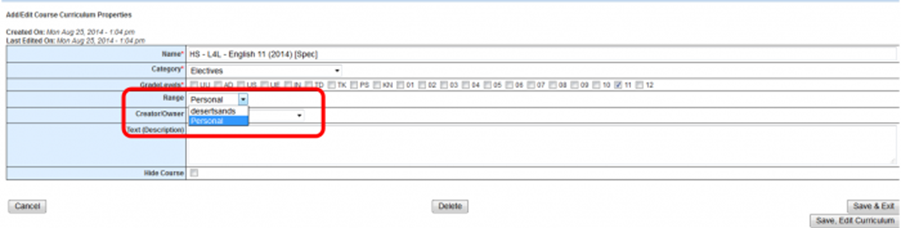
The Curriculum Sharing function needs to be turned on – Reach out to School Pathways to turn this function on for you.
Once enabled you can share curricula between your schools
Sending School: Sharing Curricula between schools/scopes
-
Go to: Admin > Settings > Bookshelf Settings
- If you do not see a school you wish to share with listed in the Bookshelf Settings area under "School Pathways School Sharing", please contact School Pathways
-
Click Set Course Sharing

-
Choose Scopes to Show and select the scopes you are Sending curricula to (sharing). This is a multi select dropdown to allow sharing to multiple scopes at one time.
-
Click Update
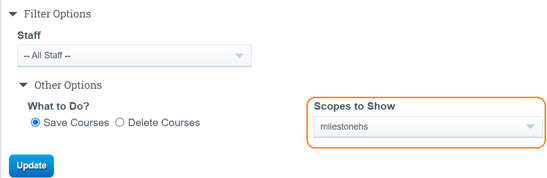
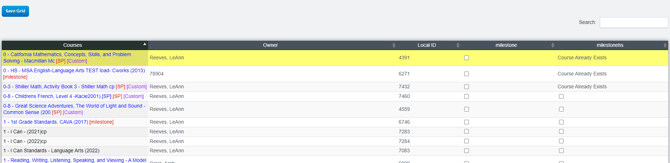
Any scopes you chose in the "Scopes to Show" dropdown will be listed as a column with checkboxes. For each curricula available in the sending scope, you'll either see a checkbox or the words "Course Already Exists"
- Checkbox: check this to indicate you wish to share the curricula with the scope
- Course Already Exists: indicates the curricula is already available in the receiving scope
-
Select which curricula to share as well as which scopes
-
Click Save Grid

-
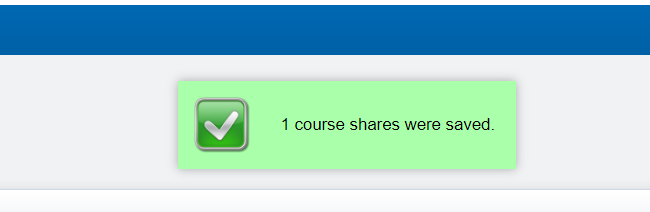
You'll see a successful message with the number of courses shared. Your work in the sending school is complete.
Receiving School: Retrieving shared curricula from another school/scope
-
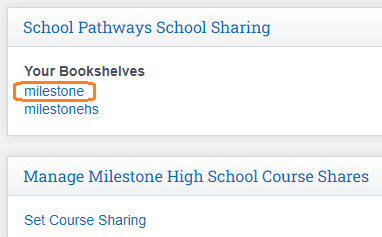
Go to: Admin > Settings > Bookshelf Settings > School Pathways School Sharing > Choose Sending Scope/School
Example: I shared from "milestone" to "milestonehs"- I will click "milestone" to pick up what was sent from that school.
-
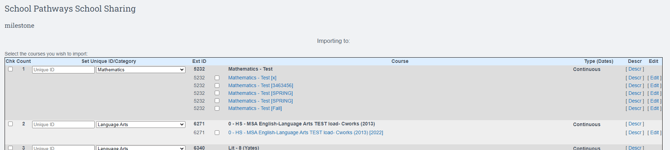
On this next page, find the curricula you recently shared. Use ctrl-f to run a search on the page by the curricula titled.
-
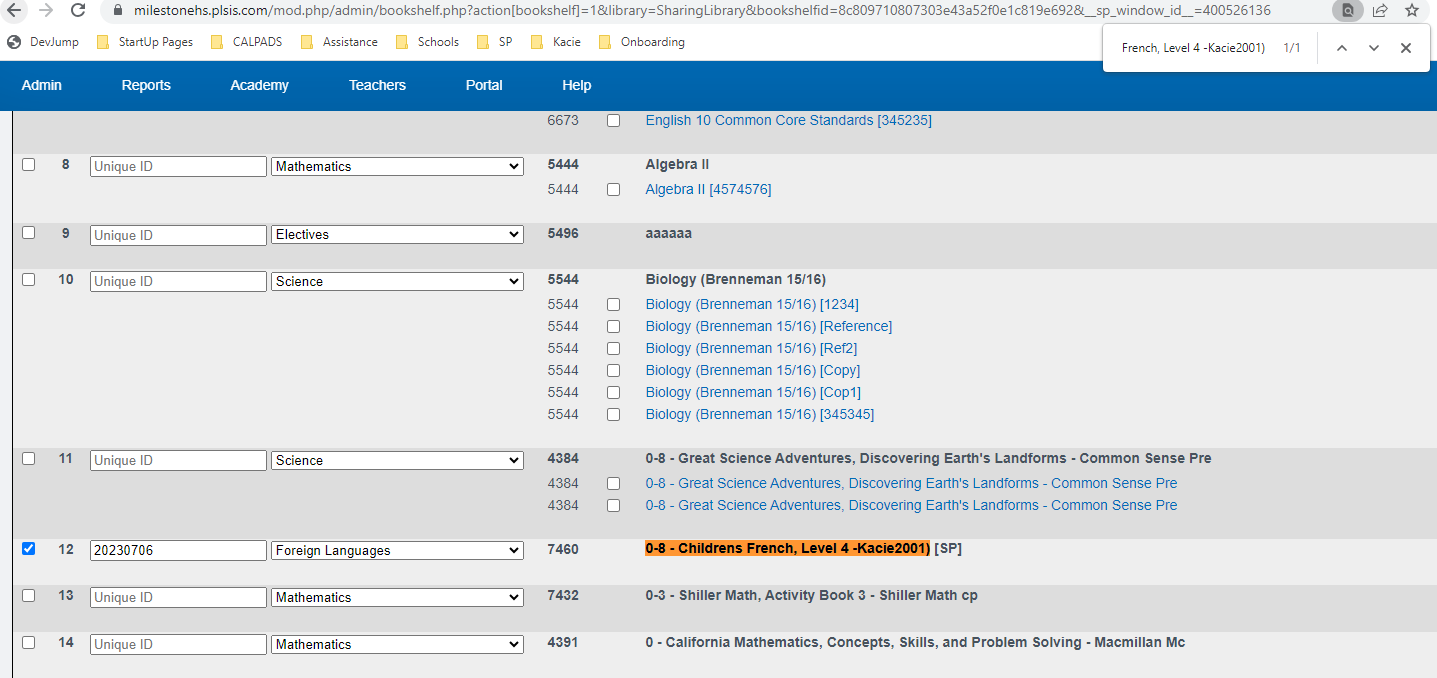
Example: I shared "0-8 - Childrens French, Level 4 -Kacie2001)" from milestone to milestone hs. I'll do a ctrl-f for that exact title.
-
Check the box for the curricula title
-
Enter a unique ID (many use the date of import- can be used for any of the curricula you are importing)
-
Choose the curricula category if different that what is being auto populated
-
Click Import Courses
-
These courses will now have a blue hyperlink below them. Each blue hyperlink is a copy/instance of that course. If you make updates in the original school you can re-share and pick up that change in a new version at the receiving school.
-
This course is now available as a curricula for staff to add to classes

Updating the Range in Mass
-
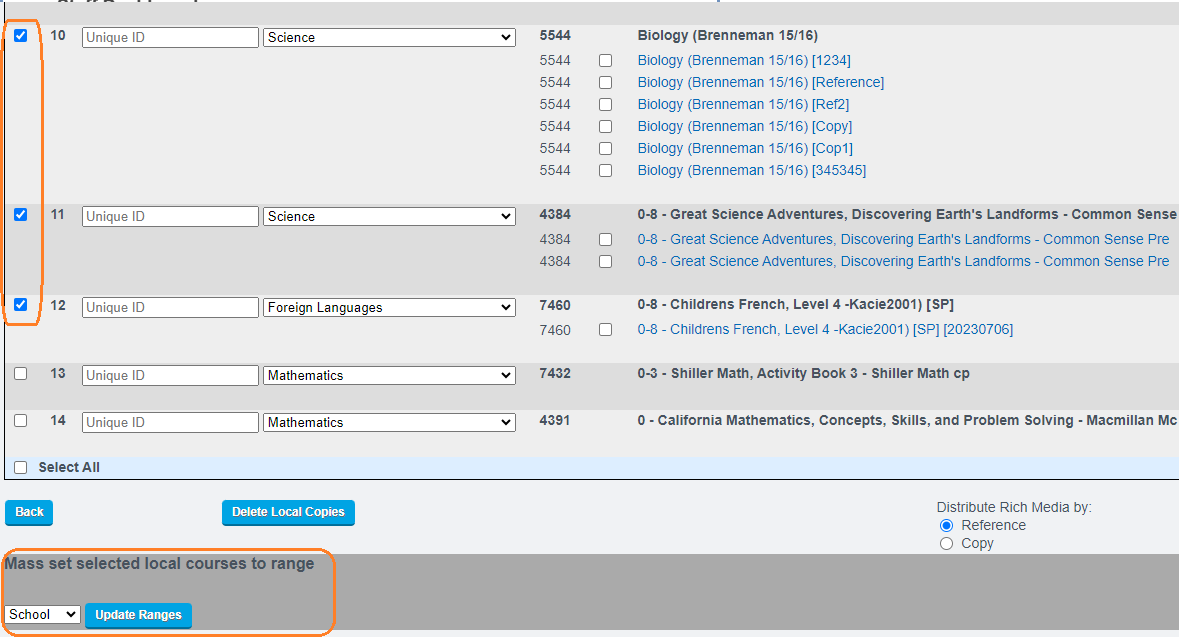
For curricula to be available to staff, the range will need to be set to "School"
-
Check the boxes for the imported curricula
-
Bottom left of the screen "Mass Set selected local courses to range"
-
Select School
-
Click Update Ranges
Owner – when the course is imported, it will be imported under the name of the user who is currently logged in. You may want to set the Creator/Owner to the actual creator of the course from the sharing school. This is completely optional
-
Edit the course
-
Change the "Creator/Owner" to the desired person
-
Click Save & Exit