
Table of Contents
If you are interested in adding on the Communications Module please reach out to a School Pathways Administrator or email customerservice@schoolpathways.com
Navigation:
-
Go to Teachers > PLS/ Student Roster
-
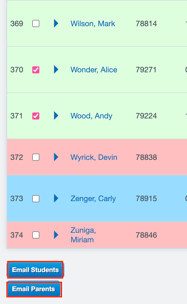
Once you are able to pull your Student Roster, select the students on the left hand side you would like to email.
-
Select Email Parents or Students
***Keep in mind, not all students or parents may have an associated email address, therefore this feature will not work.
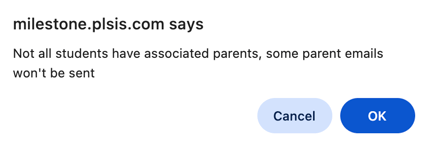
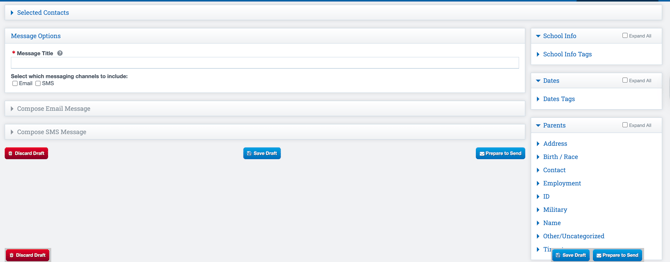
If you are enrolled in the Communications Module add on then when selecting these options, you will be reverted to the Mass Communications page.
Communications Module
-
Give your email a title.
- And select the channel you are messaging.
- Select Compose Email Message or SMS Message.
- You may use the presets on the right-hand side to pull the information directly from the SIS.
Permissions
-
To access Mass Communications, you must have the permissions below.

No Communications Module
If you do not have the Communications Module route, you will be directed to your Email.
-
When selecting Email Parents/ Students you will be directed to your email, and it will compose an email with the selected students or parents email address.