
Table of Contents
-
Registering Adult-Age Students or Emancipated Students
-
Assigning Themselves as a Parent/Guardian
-
Communication Features for 16-18 Year-Olds
-
Visual Identification: Adult-Student Icon
Registering Adult-Age or Emancipated Students
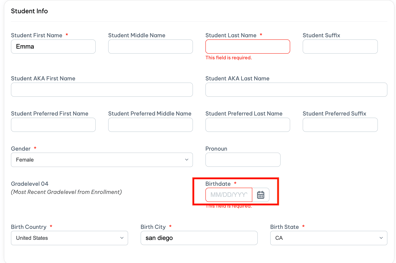
During the registration process, students who are 18 or older can be entered just like any other student, but with a few additional considerations.
Best Practices:
-
Ensure the date of birth is accurate in Reg-Online so the system can correctly identify them as an adult.
-
Include an email address and phone number that the student regularly monitors. This will be important for future communications tools being rolled out.
Assigning Themselves as a Parent/Guardian
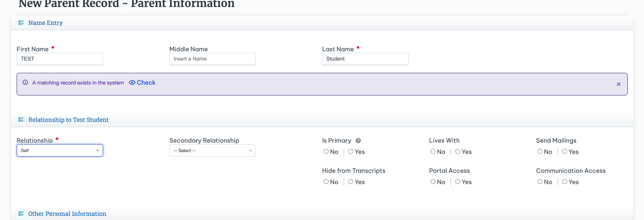
In cases where the student is their own legal guardian, they can be added to the registration form as their own parent/guardian.
Steps:
-
In the Parent/Guardian section of the registration section, use the student's own information when adding a student.
-
Select the appropriate relationship type, such as "Self".
Communication Features for 16-year-old or greater Students
Admin Policies
-
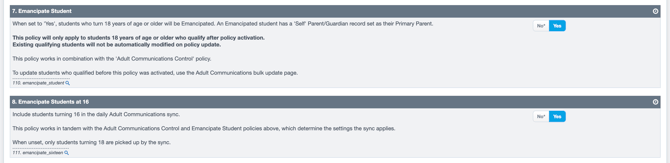
Navigate to Admin > Settings > Policies > Communications
-
Observe Policies #7 & #8.
- #7 will enable students 18 years or older will be emancipated.
-
When both are set to Yes, students who are over 16 years of age and older will be emancipated.
- To manage these Communications, when registering a new student, navigate to their Registration > Parent/ Guardian Information and review the Adult Student Records Controls

-
- Adult Communications: Communications intended for Parent/Guardians are sent to the Student instead. Parent/Guardians keep access to the Student's Portal.
- Portal Access: Parent/Guardians lose access to the Student's Portal. Communications to Parent/Guardians are not restricted.
- Emancipated: Applies both restrictions and sets the Student's 'Self' record as their Primary Parent. The Student is considered Emancipated.
- None: Sets the 'Self' record to Inactive and removes its link to the student's login. Parent/Guardians regain communications and access to the Student's Portal.
-
The Emancipate option sets the student's own "Self" parent/guardian record as primary, while Communications and Portal Access route parent communications and portal login to the student without changing the primary parent.
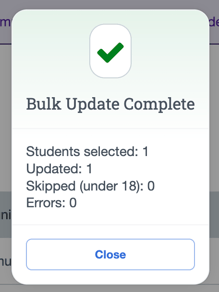
- To manage students who were previously entered before policies were enabled, and edit these controls in mass utilize our new Adult Communications bulk edit page.
Adult Communications Bulk Edit
- Navigate to: Admin > Student Info > Adult Communications
- Select Applicable filters, including whether or not to include students 16 years of age
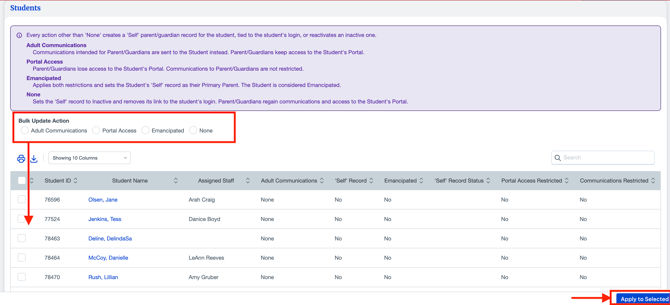
- Select the Bulk Update Action then Select the Students or all.
- Select Apply to Selected.
Visual Identification: Adult-Student Icon
Once the system recognizes a student is 18 or older based on their birthdate, you’ll see a unique icon next to their name throughout the system.
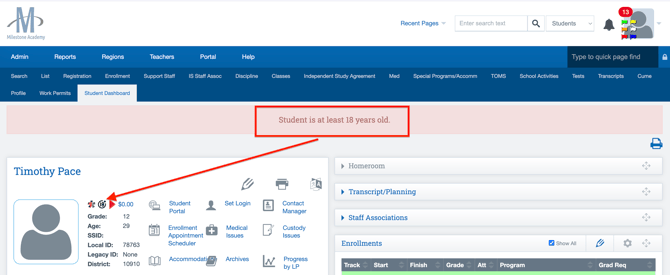
This visual cue helps staff quickly identify when a student is legally considered an adult, so communication, permissions, and documentation are handled accordingly.