For more training and resources on Multi Tiered System of Supports, utilize the California Department of Education Guidelines: Multi Tiered System of Supports
Admin MTSS Page Policies:
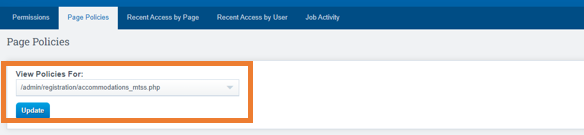
Go to the Options Cogwheel in the right hand corner and select Page Policies
-
From Dropdown Choose (see image below)
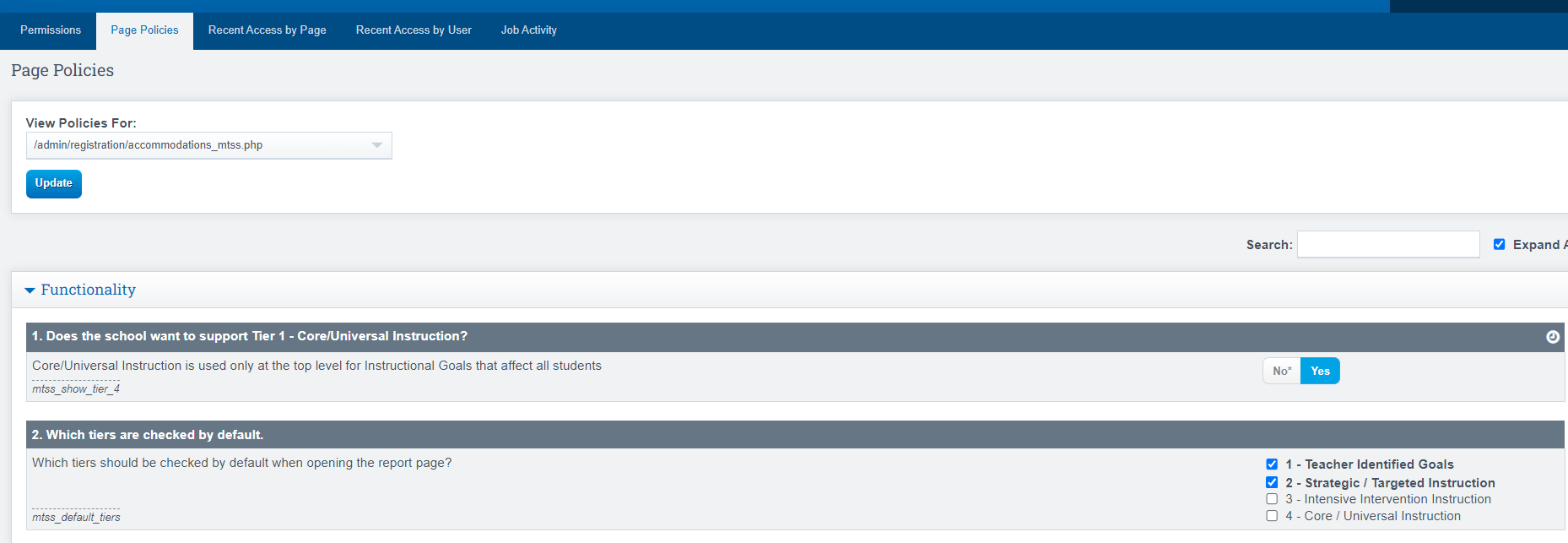
Functionality Policies
-
Does the school want to support Tier 1-Core/ Universal Instruction?
- Which tiers are checked by default?
Importing Policies
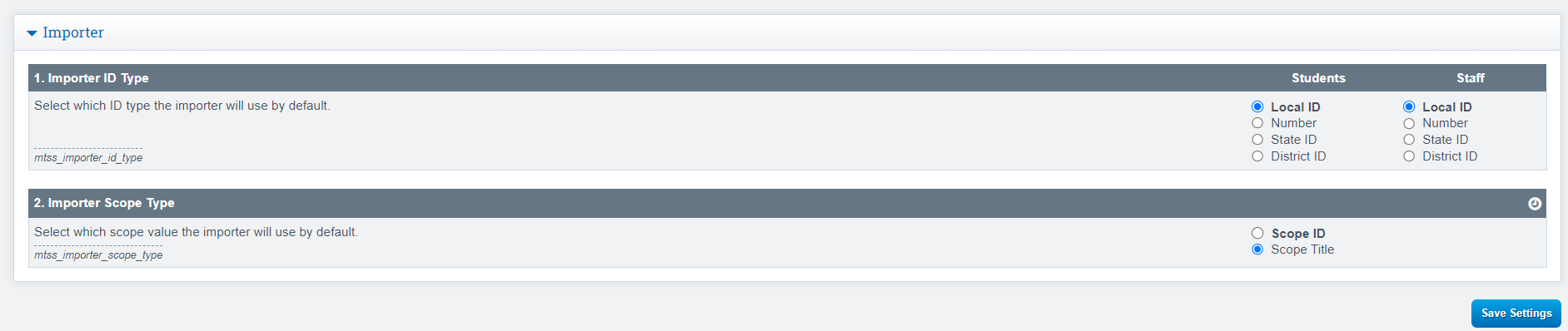
If using our Data Importer, set these policies:
Importer ID type, which Student ID the importer should use by default and Importer Scope Type whether it should use the Scope ID or Scope Title.
Data Importer Instructions: Data Importer
MTSS Settings & Entries
Navigation
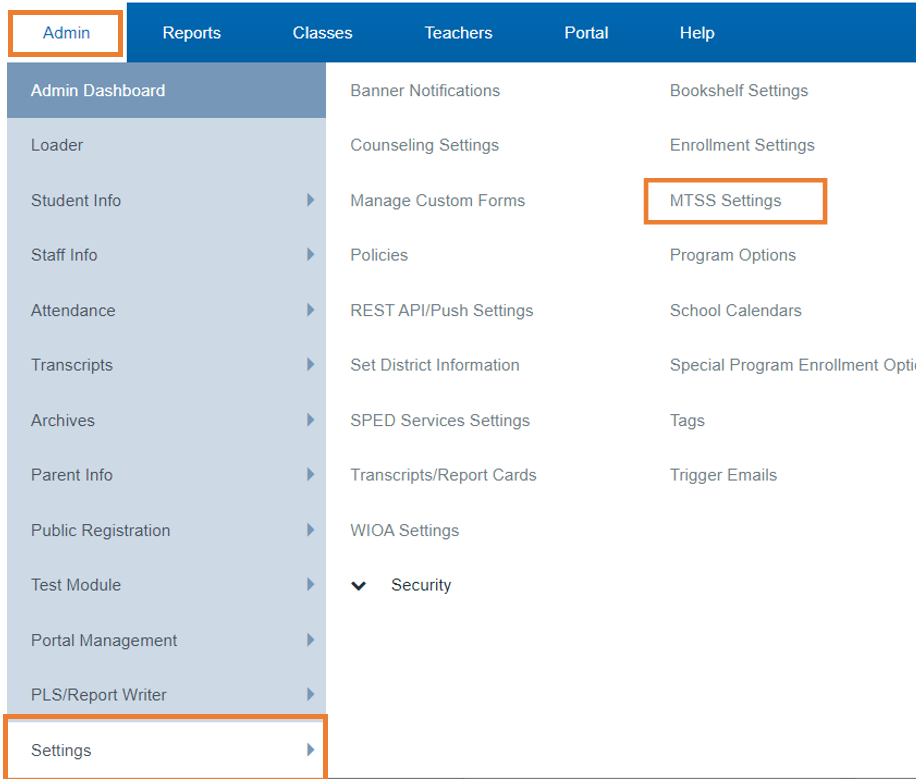
Go to: Admin > Settings > MTSS Settings
On Initial, open, the screen may be blank
-
Click the Add Tab under each section, MTSS Areas of Concern, MTSS Statuses & MTSS Tiers to create topics (you can use ours as an example)
-
Once your Topics are created, you can reorder them:
-
Click the Icon to the Right of each line item to reorder
OR
-
Click in the Numbered Box to reorder topics by changing the numbers
-
Click Save in Each Section when complete
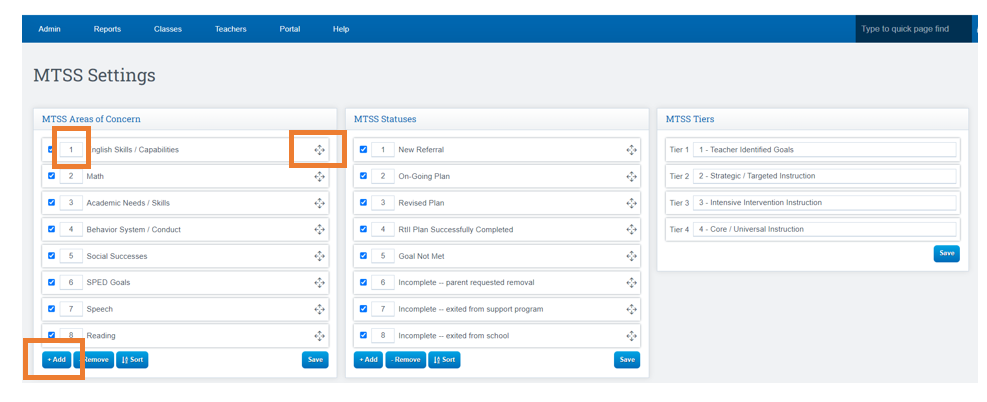
These settings will reflect on the Students MTSS tab on their Dashboard
-
Student Dashboard > Special Programs/Accoms > MTSS
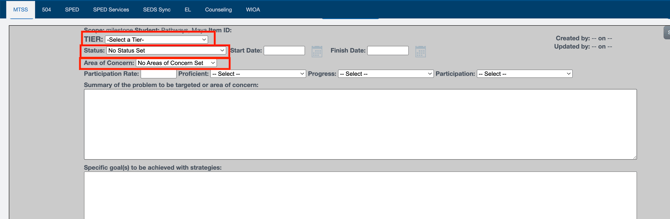
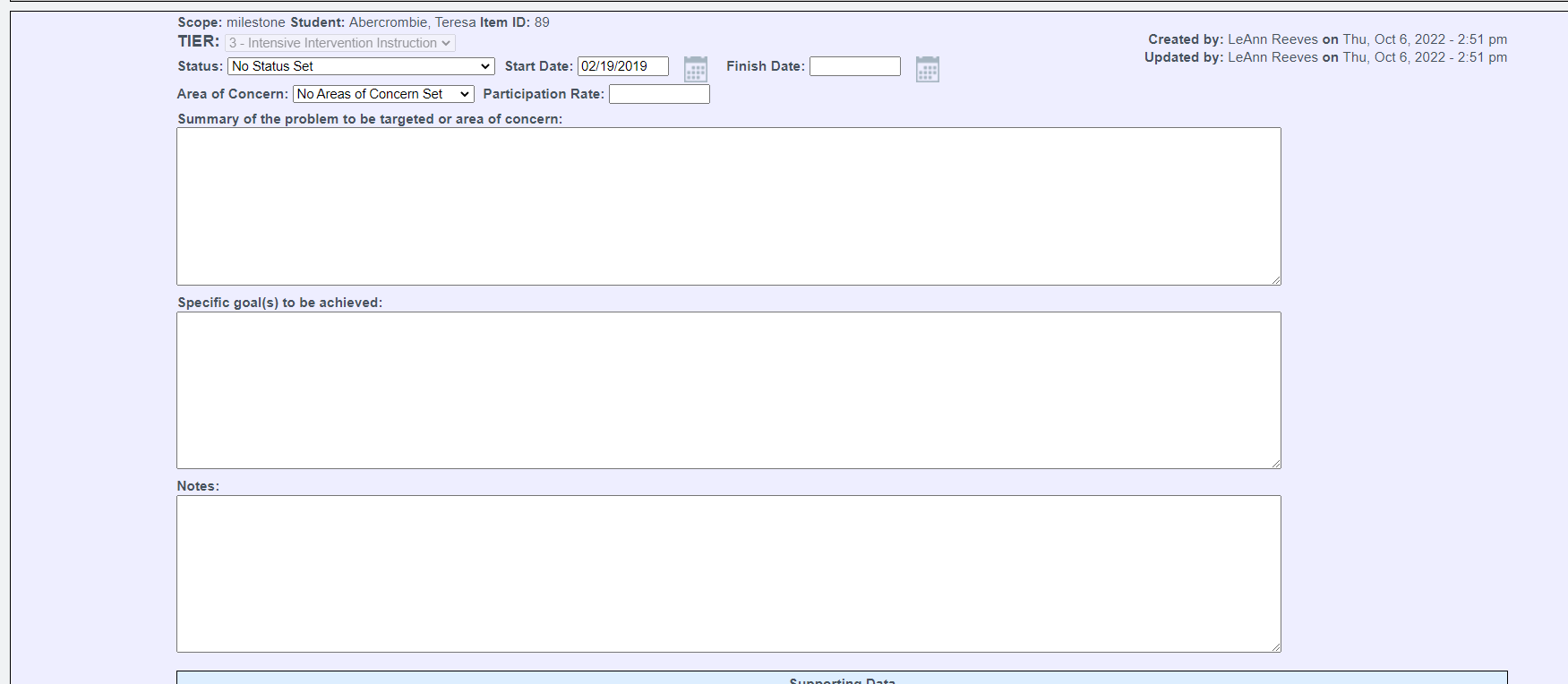
- Fill out the Form for a Student
- Once completed, press save.
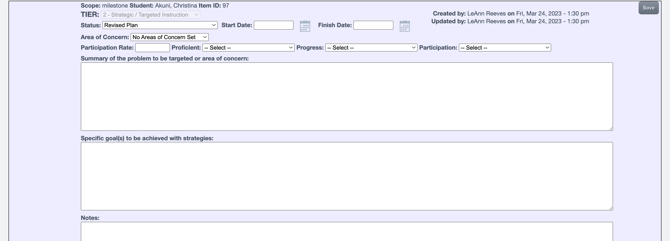
- Historical entries will showcase below, in purple with dates reflecting whom it was Last Created by and who it was Last Updated By.
-
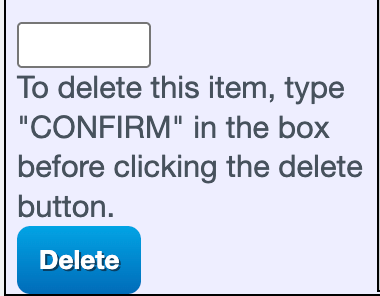
To delete an entry, in the left-hand corner of the entry, type confirm to delete.
Reporting
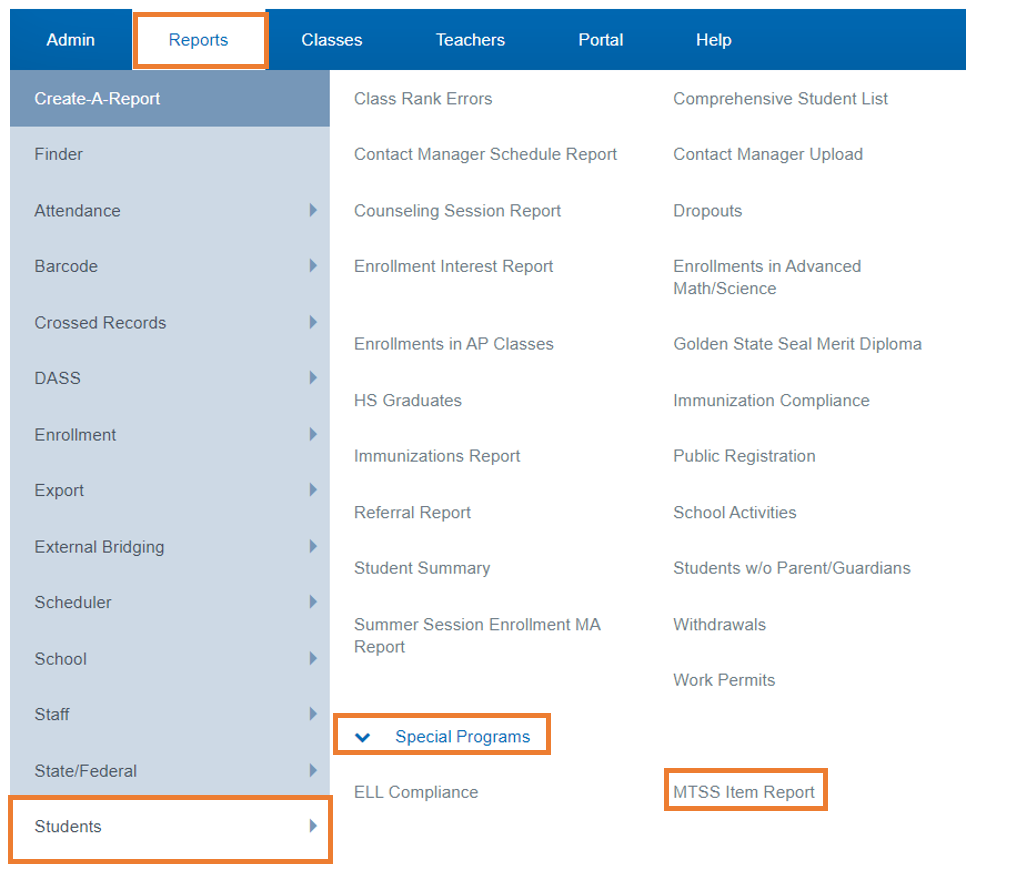
Go to: Reports > Students > Special Programs > MTSS Item Report
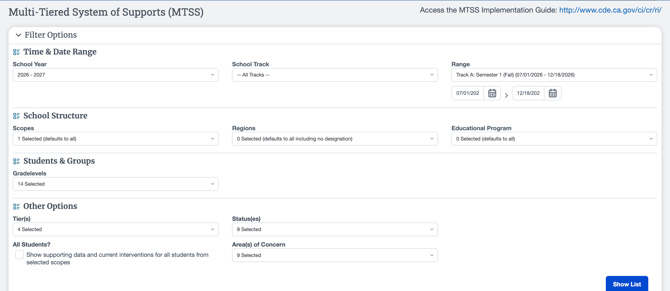
There are several filtering options:
-
Other Options: allows you to filter by different Stages of the Process
-
Click Next once filters are chosen
-
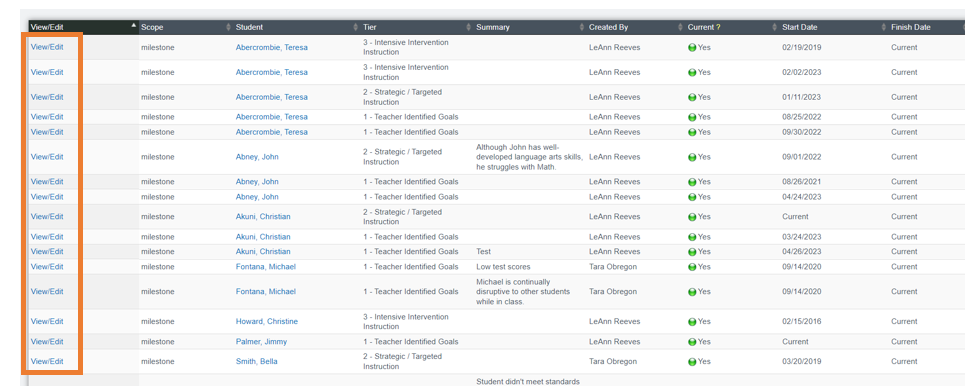
Scroll to the bottom of the screen to view the current info based off the filters you chose
-
Click View/Edit to see more detail and make edits on screen.
-
Click Save once you have made all necessary edits
MTSS Data Importer
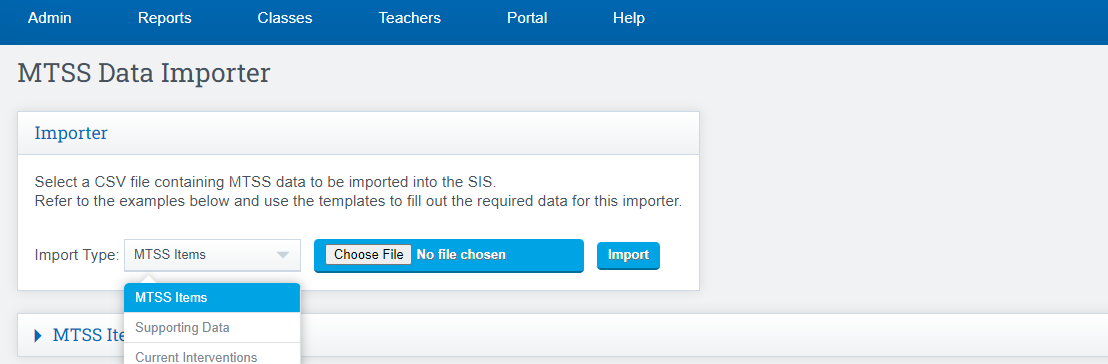
Use our Importer to Import MTSS data into the SIS.
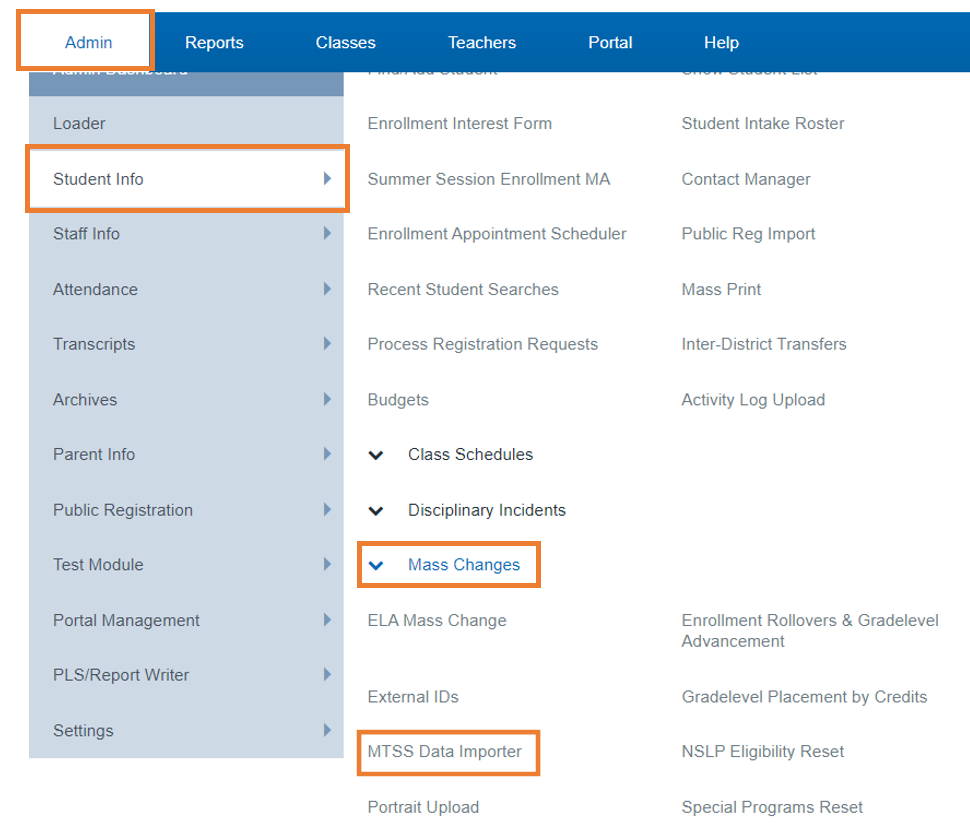
Admin > Student Info > Mass Changes > MTSS Data Importer
-
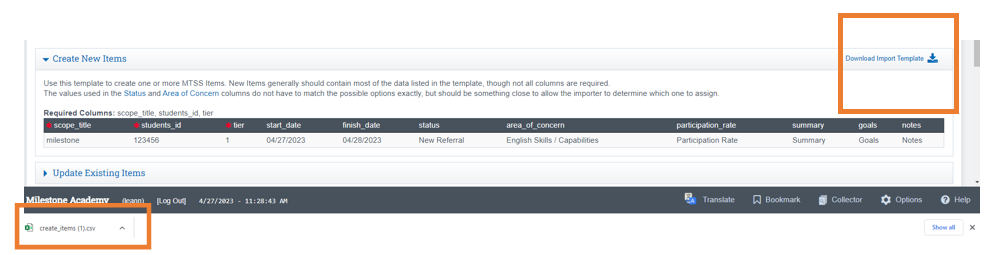
We have a CSV Template you can use to create your data for Import
-
Click Download Import Template
-
Scroll to the bottom of screen an open the document
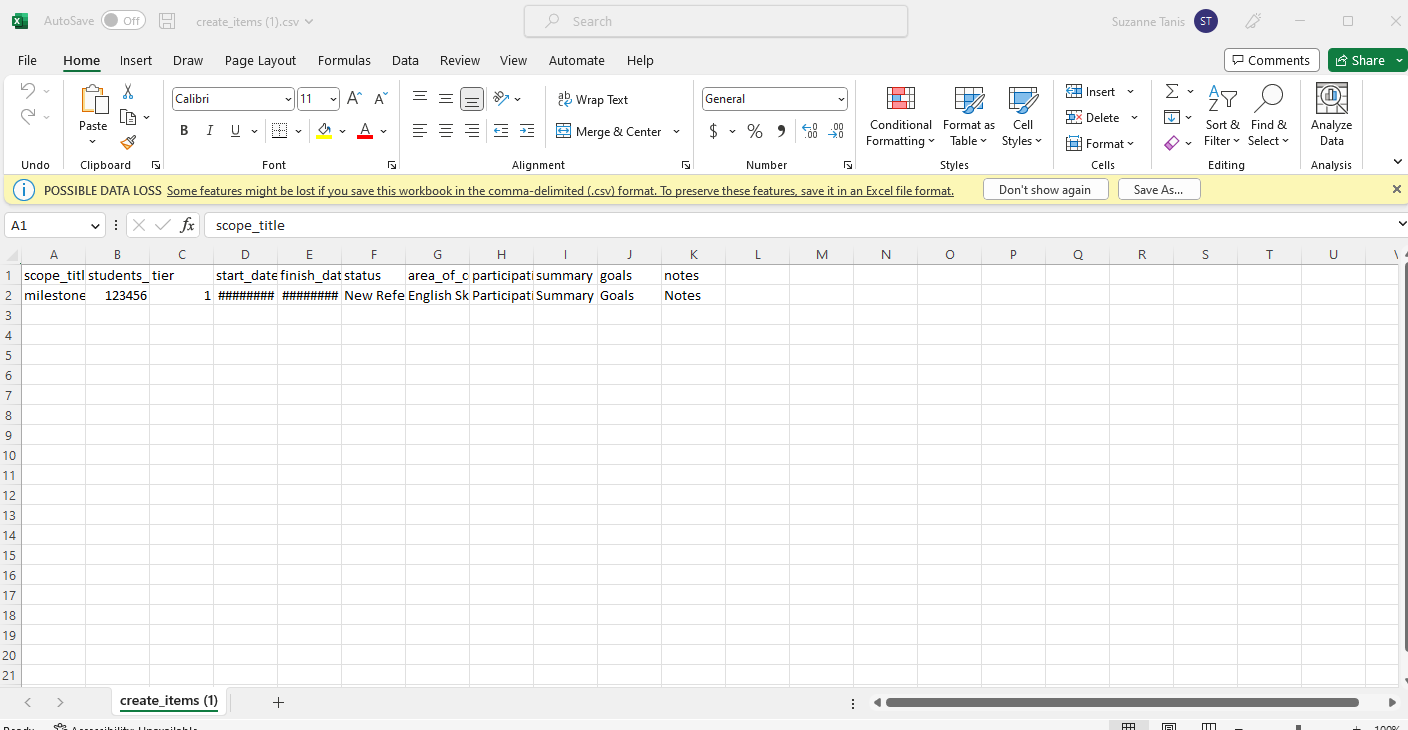
This is what the Template looks like:
Sample shows
- Column Titles
- Order to use for data
Once your CSV is complete:
-
Choose your Import Type
-
Upload File
-
Click Import