
Work Samples by Attendance Period
Beginning with the 2026–27 school year, California Assembly Bill 126 introduces new work sample requirements for pupils enrolled in independent study. Under the updated requirements, schools must maintain one completed pupil work product in each of the following core subject areas, English language arts, mathematics, history-social science, and science, for each of three attendance periods. If a pupil is not enrolled in one or more of the core subjects listed above during an attendance period, the requirement is to maintain four completed pupil work products per attendance period that are representative of the pupil’s course schedule.
To support schools in meeting these updated requirements, School Pathways has enhanced Work Samples to allow samples to be submitted and maintained by attendance period. This provides schools with a more organized way to collect and track the required work products throughout the school year and maintain documentation for compliance purposes.
Setup
There are 3 Key set up pieces.
1. Set Attendance Period Dates
Navigate to:
Admin > Settings > School Calendar > Calendar Days
- Select the appropriate School Year and Track.
- Enter the last dates for:
- Attendance Period 1
- Attendance Period 2
- Attendance Period 3
- The final attendance period will automatically populate with the last day of school once AP 1 is entered.
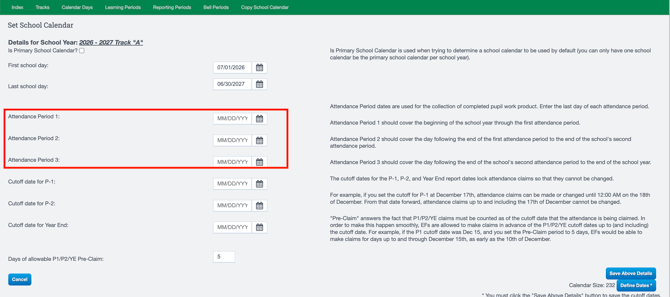
Important: All three Attendance Periods must be entered. If all three periods are not configured, the system will not allow you to proceed. If this step is not completed, you will receive an error when trying to open your Archive Compliance.

2. Update the Archiving Policy
Navigate to:
Admin > Settings > Policies > Archiving
-
Locate Policy 10 – Requires Associating Class with Work Samples and ensure this policy is turned off.
This policy must be disabled in order to use the Work Samples by Attendance Period functionality.

3. Set the Archive Compliance Report Requirements
Navigate to:
Admin > Archives > Archive Compliance
- Select the Edit Report Reqs tab.
- Locate Work Samples and select Edit.
- Locate the Attendance Collection Period option.
- Check the Attendance Collection Period setting to enable it.
- Select Save.
When enabled, Work Samples are filed according to the A-1, A-2, and A-3 Attendance Collection Periods, with four Work Sample slots available per attendance period in accordance with Education Code § 51747.5.
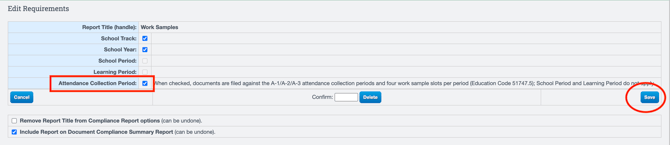
Note: When Attendance Collection Period is enabled, School Period and Learning Period do not apply to Work Sample collection and will be greyed out.
Uploading Work Samples by Attendance Period
Navigate to Archive Compliance using the appropriate path:
- Administrators: Admin > Archives > Archive Compliance
- Teachers: Teachers > Compliance > Archive Compliance
-
Select the appropriate date range. Once Attendance Periods have been configured, you will see three new ranges that correspond with the three Attendance Collection Periods. Select the appropriate range for the Work Sample you are uploading.
- Select the Correct Report Title: Work Samples
-
Within each Attendance Period, you will see four Work Sample slots.
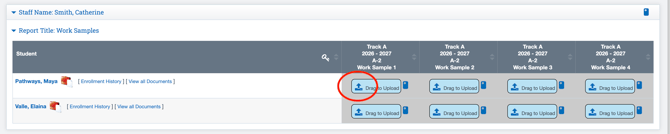
One completed Work Sample should be collected for each core subject during each Attendance Period.
- Select Upload File or Drag to Upload for the appropriate student.
- Upload the student's completed Work Sample.
- When prompted, select the appropriate:
- Class
- Subject
- If the Work Sample is not associated with one of the four core subject areas, select Other for the subject.
- Select Archive Files.
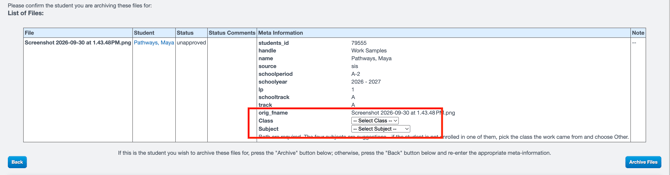
Once uploaded, the Work Sample will be associated with the selected Attendance Period and subject area.
Teachers: If navigating through your PLS roster, when you arrive to the Archive compliance, make sure you change the range to reflect the Attendance Period you are uploading for.
Work Sample Watermarks
If you want the Attendance Period field to show on the watermarks:
-
Navigate to Admin > Settings > Policies > Archiving > #13

-
Select Attendance Period
- Save.